Sales and Distribution - Transfer of Requirements
The MRP department is informed about the quantities and deadlines by which incoming orders
should be delivered. The system checks the availability of the goods based on the requested
delivery date of the customer and creates MRP records which contain all necessary information
for passing on to planning. It ensures that the goods are available in time for the delivery.
Materials planning transfers the reported requirements and creates orders or purchase
requisitions from them etc.
For controlling transfer of requirements, you have to carry out the following steps:
1. Each requirement type has to be allocated to one requirement class only.
2. The transfer of requirements must be switched on at requirements class level, the sales
documents at schedule line level.
3. You must define a check group. It is possible to have this check group proposed for the
initial creation of a material master record.
4. Note that a plant must exist for transfer of requirements to be carried out at document
item level.
OVZG - Requirement class
It specifies the following points:
- whether an availability check and a transfer of requirements is carried out for a
transaction (for sales documents, fine tuning using the schedule line category is possible),
- whether the requirements are relevant for MRP,
- the allocation indicator from the sales view which controls the settlement of customer
requirements with requirements
- whether an item is to be settled to an auxiliary account assignment,
- the settlement profile,
- the results analysis key.
(Use transaction SM30 for V_* configuration)
OVZH - Requirements type
V_TVEPZ_V - Assignment of requirement type to Transaction
V_TVEP_V - Schedule line category
OVZ2 - Define Checking Group
V_TMVFU - Define the checking group that the system proposes when you create a new material
master record. You can overwrite the default value for the checking group in the
material master record.
Showing posts with label SAP Tutorial. Show all posts
Showing posts with label SAP Tutorial. Show all posts
Friday, June 19, 2009

Wednesday, June 17, 2009
SAP Tutorial - Sales & Order - Part 3
Define whether the Material can be used at which Sales and Distribution process
Here you define how the system responds when entering a sales and distribution document
with this material in the different Sales and Distribution Process Flow..
You can use the material status, for example, to prevent orders from being entered for
parts to be discontinued.
OR
To temporary block the creation of Sales Order for a certain materials.
Set the material status parameters in transaction SM30, Table Views V_TVMS.
Assign a Cost Center manually in a Sales Order (VBAK-KOSTL)
The Cost Center Determination settings is in OVF3 - but there are some cases where the Cost Center must be exceptionally changed.
If the document category for order type in IMG VOV8 is defined to be "I" which belong to order type FD - Deliv. Free of Charge, then the field cost center is active for input during transaction VA01.
Alternatively, you can specify an order reason and assign a cost center to an order reason.
However the standard SAP works only at the header level though, so it would not work if cost center is needed on the line item.
The cost center are assign for such business transactions as :
- Free deliveries
- Returns
- Deliveries of advertising materials
You can also make cost center allocation dependent on the order reason, for example:
Order reason: Damage in transit
Order reason: Free sample
Both the IMG settings are done in transaction OVF3, either with/without the order reason.
Here you define how the system responds when entering a sales and distribution document
with this material in the different Sales and Distribution Process Flow..
You can use the material status, for example, to prevent orders from being entered for
parts to be discontinued.
OR
To temporary block the creation of Sales Order for a certain materials.
Set the material status parameters in transaction SM30, Table Views V_TVMS.
Assign a Cost Center manually in a Sales Order (VBAK-KOSTL)
The Cost Center Determination settings is in OVF3 - but there are some cases where the Cost Center must be exceptionally changed.
If the document category for order type in IMG VOV8 is defined to be "I" which belong to order type FD - Deliv. Free of Charge, then the field cost center is active for input during transaction VA01.
Alternatively, you can specify an order reason and assign a cost center to an order reason.
However the standard SAP works only at the header level though, so it would not work if cost center is needed on the line item.
The cost center are assign for such business transactions as :
- Free deliveries
- Returns
- Deliveries of advertising materials
You can also make cost center allocation dependent on the order reason, for example:
Order reason: Damage in transit
Order reason: Free sample
Both the IMG settings are done in transaction OVF3, either with/without the order reason.
Monday, June 15, 2009
SAP Tutorial - Sales & Order - Part 2
Auto proposed all the dates when creating Sales Order
How can I make the system auto create all the Sales Order date during creation?
Each Sales Order can have different date proposal settings.
Follows this step to set the default Sales Order Type proposal date:
- Goto VOV8, double click on sales order type.
- Look and tick the fields Propose delivery date and Propose PO date.
After making the necessary IMG changes, you need to input the Delivery Plant field for each Materials that you want the system to propose the default date.
To change the Materials field Delivery Plant:
Goto MM02, Select the View Sales: Sales Org. Data 1 and fill in the Delivery Plant.
Testing:
Now, try creating a new sales order for the material and SAP will auto proposed all the dates in the sales order.
How can I make the system auto create all the Sales Order date during creation?
Each Sales Order can have different date proposal settings.
Follows this step to set the default Sales Order Type proposal date:
- Goto VOV8, double click on sales order type.
- Look and tick the fields Propose delivery date and Propose PO date.
After making the necessary IMG changes, you need to input the Delivery Plant field for each Materials that you want the system to propose the default date.
To change the Materials field Delivery Plant:
Goto MM02, Select the View Sales: Sales Org. Data 1 and fill in the Delivery Plant.
Testing:
Now, try creating a new sales order for the material and SAP will auto proposed all the dates in the sales order.
Saturday, June 13, 2009
SAP Tutorial - Sales Order - Part 1
Default First Date is not Today
When end user created a new sales order with VA01, default First Date wasn't today, why?
Note:
1. Before today, default First Date was always today.
2. Nobody change system configuration.
Although you mention that nobody change the system configuration, it is very unlikely that the system will mis-behaved after one day.
Usually, after checking, you will find that someone have actually change the configuration as it could not be a software bug since you have been using it for quite sometime without any problems.
The date is control by each Sales Order Type for each Sales Document type whether is it a
- OR - Standard Order,
- RE - Returns etc.
Verify the Sales order type configuration with the following path:
IMG: Sales and Distribution --> Sales --> Sales Docs --> Sales Doc Hdr --> Define Sales Doc Types (transaction vov8) will let you control this by sales document type.
There is one field (Lead time in days) which "specify the number of days after the current date that the proposal for the requested delivery date in the sales document should be".
This should be blank if you want the system to propose current day for delivery date.
When end user created a new sales order with VA01, default First Date wasn't today, why?
Note:
1. Before today, default First Date was always today.
2. Nobody change system configuration.
Although you mention that nobody change the system configuration, it is very unlikely that the system will mis-behaved after one day.
Usually, after checking, you will find that someone have actually change the configuration as it could not be a software bug since you have been using it for quite sometime without any problems.
The date is control by each Sales Order Type for each Sales Document type whether is it a
- OR - Standard Order,
- RE - Returns etc.
Verify the Sales order type configuration with the following path:
IMG: Sales and Distribution --> Sales --> Sales Docs --> Sales Doc Hdr --> Define Sales Doc Types (transaction vov8) will let you control this by sales document type.
There is one field (Lead time in days) which "specify the number of days after the current date that the proposal for the requested delivery date in the sales document should be".
This should be blank if you want the system to propose current day for delivery date.
Thursday, June 11, 2009
SAP Tutorial - Credit Management - Part 4
Dunning Process In Credit Management
Explain about dunning process in credit management?
Let me explain in simple terms:
1) You have a Customer which you had felt, he is doing good business and supplied material on Credit of 45 days.
2) Since this customer is good as you felt, you have not managed Credit Checks as well. So, he had comfortably reached to the fullest credit (or even more) which you can afford for any customer.
3) One fine day you got realized that, there is very bad debt with this customer and need to recover from him and till then, there will be no further supply to the customer.
4) Your company's legal department has laid a policy that, in order to recover any bad debts, like:
a) We will send a normal payment reminder.
b) In case customer doesn't respond, we will send at least further reminder (dunning notice) may be 9 times
(9 reminders) (Dunning level) and what intervals of time (dunning frequency)
c) Still if the customer doesn't respond for the reminders, you will file a law suit against the customer for recovering
the Payments.
d) Finally, after getting verdict, you may proceed for auction of his property or as per the order for Law.
Now in SAP, the definition of Dunning procedure is a pre-defined procedure specifying how customers or vendors are dunned.
For each procedure, the user defines
- Number of dunning levels
- Dunning frequency
- Amount limits
- Texts for the dunning notices
In SAP, you will maintain the Dunning Procedure at customer master. Referring to this your SD Team / FI Team (user team) will effect Dunning
PS: You might remembered the dunning procedure laid by Reliance Mobile, sometime back, sending street rowdies for recovering the bad debts from users. That is dunning. Remember Reliance, you will not forget dunning forever.
Explain about dunning process in credit management?
Let me explain in simple terms:
1) You have a Customer which you had felt, he is doing good business and supplied material on Credit of 45 days.
2) Since this customer is good as you felt, you have not managed Credit Checks as well. So, he had comfortably reached to the fullest credit (or even more) which you can afford for any customer.
3) One fine day you got realized that, there is very bad debt with this customer and need to recover from him and till then, there will be no further supply to the customer.
4) Your company's legal department has laid a policy that, in order to recover any bad debts, like:
a) We will send a normal payment reminder.
b) In case customer doesn't respond, we will send at least further reminder (dunning notice) may be 9 times
(9 reminders) (Dunning level) and what intervals of time (dunning frequency)
c) Still if the customer doesn't respond for the reminders, you will file a law suit against the customer for recovering
the Payments.
d) Finally, after getting verdict, you may proceed for auction of his property or as per the order for Law.
Now in SAP, the definition of Dunning procedure is a pre-defined procedure specifying how customers or vendors are dunned.
For each procedure, the user defines
- Number of dunning levels
- Dunning frequency
- Amount limits
- Texts for the dunning notices
In SAP, you will maintain the Dunning Procedure at customer master. Referring to this your SD Team / FI Team (user team) will effect Dunning
PS: You might remembered the dunning procedure laid by Reliance Mobile, sometime back, sending street rowdies for recovering the bad debts from users. That is dunning. Remember Reliance, you will not forget dunning forever.
Tuesday, June 9, 2009
SAP Tutorial - Credit Management - Part 3
Set Up for Credit Card Payment Processing
Given below is the set up for credit card payment processing:
Set Up Credit Control Areas:
Define Credit Control Area
Transaction: OB45
Tables: T014
Action: Define a credit control area and its associated currency. The Update Group should be ‘00012’. This entry is required so the sales order will calculate the value to authorize
Assign Company Code to Credit Control Area
Transaction: OB38
Tables: T001
Action: Assign a default credit control area for each company code
Define Permitted Credit Control Area for a Company
Code
Transaction:
Tables: T001CM
Action: For each company code enter every credit control area that can be used
Identify Credit Price
Transaction: V/08
Tables: T683S
Action: Towards the end of the pricing procedure, after all pricing and tax determination, create a subtotal line to store the value of the price plus any sales tax. Make the following entries:
Sub to: “A”
Reqt: “2”
AltCTy: “4”
Automatic Credit Checking
Transaction: OVA8
Tables: T691F
Action: Select each combination of credit control areas, risk categories and document types for which credit checking should be bypassed. You need to mark the field “no Credit Check” with the valid number for sales documents.
Set Up Payment Guarantees
Define Forms of Payment Guarantee
Transaction: OVFD
Tables: T691K
Action: R/3 is delivered with form “02” defined for payment cards. Other than the descriptor, the only other entry should be “3” in the column labeled “PymtGuaCat”
Define Payment Guarantee Procedure
Transaction:
Tables: T691M/T691O
Action: Define a procedure and a description.
Forms of Payment Guarantee and make the following entries Sequential Number “1”
Payment Guarantee Form “02”
Routine Number “0” Routine Number can be used to validate payment card presence.
Define Customer Payment Guarantee Flag
Transaction:
Tables: T691P
Action: Define a flag to be stored in table.
Create Customer Payment Guarantee = “Payment Card Payment Cards (All Customers can use Payment Cards)”.
Define Sales Document Payment Guarantee Flag
Transaction:
Tables: T691R
Action: Define the flag that will be associated with sales document types that are relevant for payment cards
Assign Sales Document Payment Guarantee Flag
Transaction:
Tables: TVAK
Action: Assign the document flag type the sales documents types that are relevant for payment cards.
Determine Payment Guarantee Procedure
Transaction: OVFJ
Tables: T691U
Action: Combine the Customer flag and the sales document flag to derive the payment guarantee procedure
Payment Card Configuration
Define Card Types
Transaction:
Tables: TVCIN
Action: Create the different card types plus the routine that validates the card for length and prefix (etc…)
Visa , Mastercard, American Express, and Discover
Create the following entries for each payment card
AMEX American Express ZCCARD_CHECK_AMEX Month
DC Discover Card ZCCARD_CHECK_DC Month*****
MC Mastercard ZCCARD_CHECK_MC Month
VISA Visa ZCCARD_CHECK_VISA Month
The Routines can be created based on the original routines delivered by SAP.
*****SAP does not deliver a card check for Discover Card. We created our own routine.
Define Card Categories
Transaction:
Tables: TVCTY
Action: Define the card category to determine if a
payment card is a credit card or a procurement card.
Create the following two entries
Cat Description One Card Additional Data
CC Credit Cards No-check No-check
PC Procurement Cards No-check Check
Determine Card Categories
Transaction:
Tables: TVCTD
Action: For each card category map the account number range to a card category. Multiple ranges are possible for each card category or a masking technique can be used. Get the card number ranges from user community. Below is just a sample of what I am aware are the different types of cards.
Visa Credit Expires in 7 days.
400000 405500
405505 405549
405555 415927
415929 424603
424606 427532
427534 428799
428900 471699
471700 499999
Visa Procurement Expires in 7 days.
405501 405504
405550 405554
415928 415928
424604 424605
427533 427533
428800 428899
Mastercard Credit Expires in 30 days
500000 540499
540600 554999
557000 599999
Mastercard Procurement Expires in 30 days
540500 540599
555000 556999
American Express Credit Expires in 30 days
340000 349999
370000 379999
Discover Card Credit Expires in 30 days
601100 601199
Set Sales Documents to accept Payment Card Information Transaction:
Tables: TVAK
Action: Review the listing of Sales Document types and enter “03” in the column labeled “PT” for each type which can accept a payment card
Configuration for Authorization Request
Maintain Authorization Requirements
Transaction: OV9A
Tables: TFRM
Action: Define and activate the abap requirement that determines when an authorization is sent. Note that the following tables are available to be used in the abap requirement (VBAK, VBAP, VBKD, VBUK, and VBUP).
Define Checking Group
Transaction:
Tables: CCPGA
Action: Define a checking group and enter the
description. Then follow the below guidelines for the remaining fields to be filled.
AuthReq Routine 901 is set here.
PreAu If checked R/3 will request an authorization for a .01 and the authorization will be flagged as such. (Insight does not use pre-authorization check).
A horizon This is the days in the future SAP will use to determine the value to authorize
(Insight does not use auth horizon period).
Valid You will get warning message if the payment card is expiring within 30 days of order entry date.
Assign Checking Group to Sales Document
Transaction:
Tables: TVAK
Action: Assign the checking group to the sales order types relevant for payment cards
Define Authorization Validity Periods
Transaction:
Tables: TVCIN
Action: For each card type enter the authorization validity period in days.
AMEX American Express 30
DC Discover card 30
MC Master card 30
VISA Visa 7
Configuration for clearing houses
Create new General Ledger Accounts
Transaction: FS01
Tables:
Action: Two General Ledger accounts need to be created for each payment card type. One for A/R reconciliation purposes and one for credit card clearing.
Maintain Condition Types
Transaction: OV85
Tables: T685
Action: Define a condition type for account determination and assign it to access sequence “A001”
Define account determination procedure
Transaction: OV86
Tables: T683 / T683S
Action: Define procedure name and select the procedure for control. Enter the condition type defined in the previous step.
Assign account determination procedure
Transaction:
Tables:
Action: Determine which billing type we are using for payment card process.
Authorization and Settlement Control
Transaction:
Tables: TCCAA
Action: Define the general ledger accounts for reconciliation and clearing and assign the function modules for authorization and settlement along with the proper RFC destinations for each.
Enter Merchant ID’s
Transaction:
Tables: TCCM
Action: Create the merchant id’s that the company uses to process payment cards
Assign merchant id’s
Transaction:
Tables: TCCAA
Action: Enter the merchant id’s with each clearinghouse account
Given below is the set up for credit card payment processing:
Set Up Credit Control Areas:
Define Credit Control Area
Transaction: OB45
Tables: T014
Action: Define a credit control area and its associated currency. The Update Group should be ‘00012’. This entry is required so the sales order will calculate the value to authorize
Assign Company Code to Credit Control Area
Transaction: OB38
Tables: T001
Action: Assign a default credit control area for each company code
Define Permitted Credit Control Area for a Company
Code
Transaction:
Tables: T001CM
Action: For each company code enter every credit control area that can be used
Identify Credit Price
Transaction: V/08
Tables: T683S
Action: Towards the end of the pricing procedure, after all pricing and tax determination, create a subtotal line to store the value of the price plus any sales tax. Make the following entries:
Sub to: “A”
Reqt: “2”
AltCTy: “4”
Automatic Credit Checking
Transaction: OVA8
Tables: T691F
Action: Select each combination of credit control areas, risk categories and document types for which credit checking should be bypassed. You need to mark the field “no Credit Check” with the valid number for sales documents.
Set Up Payment Guarantees
Define Forms of Payment Guarantee
Transaction: OVFD
Tables: T691K
Action: R/3 is delivered with form “02” defined for payment cards. Other than the descriptor, the only other entry should be “3” in the column labeled “PymtGuaCat”
Define Payment Guarantee Procedure
Transaction:
Tables: T691M/T691O
Action: Define a procedure and a description.
Forms of Payment Guarantee and make the following entries Sequential Number “1”
Payment Guarantee Form “02”
Routine Number “0” Routine Number can be used to validate payment card presence.
Define Customer Payment Guarantee Flag
Transaction:
Tables: T691P
Action: Define a flag to be stored in table.
Create Customer Payment Guarantee = “Payment Card Payment Cards (All Customers can use Payment Cards)”.
Define Sales Document Payment Guarantee Flag
Transaction:
Tables: T691R
Action: Define the flag that will be associated with sales document types that are relevant for payment cards
Assign Sales Document Payment Guarantee Flag
Transaction:
Tables: TVAK
Action: Assign the document flag type the sales documents types that are relevant for payment cards.
Determine Payment Guarantee Procedure
Transaction: OVFJ
Tables: T691U
Action: Combine the Customer flag and the sales document flag to derive the payment guarantee procedure
Payment Card Configuration
Define Card Types
Transaction:
Tables: TVCIN
Action: Create the different card types plus the routine that validates the card for length and prefix (etc…)
Visa , Mastercard, American Express, and Discover
Create the following entries for each payment card
AMEX American Express ZCCARD_CHECK_AMEX Month
DC Discover Card ZCCARD_CHECK_DC Month*****
MC Mastercard ZCCARD_CHECK_MC Month
VISA Visa ZCCARD_CHECK_VISA Month
The Routines can be created based on the original routines delivered by SAP.
*****SAP does not deliver a card check for Discover Card. We created our own routine.
Define Card Categories
Transaction:
Tables: TVCTY
Action: Define the card category to determine if a
payment card is a credit card or a procurement card.
Create the following two entries
Cat Description One Card Additional Data
CC Credit Cards No-check No-check
PC Procurement Cards No-check Check
Determine Card Categories
Transaction:
Tables: TVCTD
Action: For each card category map the account number range to a card category. Multiple ranges are possible for each card category or a masking technique can be used. Get the card number ranges from user community. Below is just a sample of what I am aware are the different types of cards.
Visa Credit Expires in 7 days.
400000 405500
405505 405549
405555 415927
415929 424603
424606 427532
427534 428799
428900 471699
471700 499999
Visa Procurement Expires in 7 days.
405501 405504
405550 405554
415928 415928
424604 424605
427533 427533
428800 428899
Mastercard Credit Expires in 30 days
500000 540499
540600 554999
557000 599999
Mastercard Procurement Expires in 30 days
540500 540599
555000 556999
American Express Credit Expires in 30 days
340000 349999
370000 379999
Discover Card Credit Expires in 30 days
601100 601199
Set Sales Documents to accept Payment Card Information Transaction:
Tables: TVAK
Action: Review the listing of Sales Document types and enter “03” in the column labeled “PT” for each type which can accept a payment card
Configuration for Authorization Request
Maintain Authorization Requirements
Transaction: OV9A
Tables: TFRM
Action: Define and activate the abap requirement that determines when an authorization is sent. Note that the following tables are available to be used in the abap requirement (VBAK, VBAP, VBKD, VBUK, and VBUP).
Define Checking Group
Transaction:
Tables: CCPGA
Action: Define a checking group and enter the
description. Then follow the below guidelines for the remaining fields to be filled.
AuthReq Routine 901 is set here.
PreAu If checked R/3 will request an authorization for a .01 and the authorization will be flagged as such. (Insight does not use pre-authorization check).
A horizon This is the days in the future SAP will use to determine the value to authorize
(Insight does not use auth horizon period).
Valid You will get warning message if the payment card is expiring within 30 days of order entry date.
Assign Checking Group to Sales Document
Transaction:
Tables: TVAK
Action: Assign the checking group to the sales order types relevant for payment cards
Define Authorization Validity Periods
Transaction:
Tables: TVCIN
Action: For each card type enter the authorization validity period in days.
AMEX American Express 30
DC Discover card 30
MC Master card 30
VISA Visa 7
Configuration for clearing houses
Create new General Ledger Accounts
Transaction: FS01
Tables:
Action: Two General Ledger accounts need to be created for each payment card type. One for A/R reconciliation purposes and one for credit card clearing.
Maintain Condition Types
Transaction: OV85
Tables: T685
Action: Define a condition type for account determination and assign it to access sequence “A001”
Define account determination procedure
Transaction: OV86
Tables: T683 / T683S
Action: Define procedure name and select the procedure for control. Enter the condition type defined in the previous step.
Assign account determination procedure
Transaction:
Tables:
Action: Determine which billing type we are using for payment card process.
Authorization and Settlement Control
Transaction:
Tables: TCCAA
Action: Define the general ledger accounts for reconciliation and clearing and assign the function modules for authorization and settlement along with the proper RFC destinations for each.
Enter Merchant ID’s
Transaction:
Tables: TCCM
Action: Create the merchant id’s that the company uses to process payment cards
Assign merchant id’s
Transaction:
Tables: TCCAA
Action: Enter the merchant id’s with each clearinghouse account
Sunday, June 7, 2009
SAP Tutorial - Credit Management - Part 2
Difference Between Simple and Automatic Credit Check Types
Explain in detail difference between simple and automatic credit check types. In automatic check, difference between static and dynamic checks.
SIMPLE CREDIT CHECK : Tr.Code - FD32
It Considers the Doc.Value + Open Items.
Doc.Value : Sales Order Has been saved but not delivered
Open Item : Sales Order has been saved , Delivered, Billed & Transfered to FI, but not received the payment from the customer.
Eg: Customer Credit Limit is Rs.1,00,000/-
Suppose Doc.Value + Open Item Value is Rs.1,10,000/-
Here credit limit exceeds then system reacts.
Options : A) Warning Message
B) Error Message (Sales Order won't be saved)
C) Error Message with Delivery Block
AUTOMATIC CREDIT CHECK : Give extra credit facilities to the particular customer.
STATIC CREDIT LIMIT DETERMINATION :Checking Group + Risk Category + Credit Control Area.
A) Credit Checking Groups : Types of Checking Groups.
01) Sales
02) Deliveries
03) Goods Issue
At all the above 3 levels orders can be blocked.
B) Risk Category : Based on the risk categories company decide how much credit has to give to the customer.
HIGH RISK (0001) : LOW CREDIT
LOW RISK (0002) : MORE CREDIT
MEDIUM RISK(0003) : Average Credit
Static Credit Check it checks all these doc value & check with the credit limit
1) Open Doc.Value / Sales Order Value : Which is save but not delivered
2) Open Delivery Doc.Value : Which is delivered but not billed
3) Open Billing Doc.Value : Which is billed but not posted to FI
4) Open Item : Which is transferred to FI but not received from the customer.
DYNAMIC CREDIT CHECK : 1) Open Doc
2) Open Delivery
3) Open Billing
4) Open Items
5) Horizon Period = Eg.3Months
Here the System will not consider the above 1,2,3& 4 values for the lost 3 months
Then assign the Sales Doc & Del Documents.
Sales Doc. Type(OR) + credit Check(0) + Credit Group (01)
Credit Limit Check for Delivery Type : Del. Type (LF) + Del Credit
Group (02) + Goods Issue Credit Group (03)
Explain in detail difference between simple and automatic credit check types. In automatic check, difference between static and dynamic checks.
SIMPLE CREDIT CHECK : Tr.Code - FD32
It Considers the Doc.Value + Open Items.
Doc.Value : Sales Order Has been saved but not delivered
Open Item : Sales Order has been saved , Delivered, Billed & Transfered to FI, but not received the payment from the customer.
Eg: Customer Credit Limit is Rs.1,00,000/-
Suppose Doc.Value + Open Item Value is Rs.1,10,000/-
Here credit limit exceeds then system reacts.
Options : A) Warning Message
B) Error Message (Sales Order won't be saved)
C) Error Message with Delivery Block
AUTOMATIC CREDIT CHECK : Give extra credit facilities to the particular customer.
STATIC CREDIT LIMIT DETERMINATION :Checking Group + Risk Category + Credit Control Area.
A) Credit Checking Groups : Types of Checking Groups.
01) Sales
02) Deliveries
03) Goods Issue
At all the above 3 levels orders can be blocked.
B) Risk Category : Based on the risk categories company decide how much credit has to give to the customer.
HIGH RISK (0001) : LOW CREDIT
LOW RISK (0002) : MORE CREDIT
MEDIUM RISK(0003) : Average Credit
Static Credit Check it checks all these doc value & check with the credit limit
1) Open Doc.Value / Sales Order Value : Which is save but not delivered
2) Open Delivery Doc.Value : Which is delivered but not billed
3) Open Billing Doc.Value : Which is billed but not posted to FI
4) Open Item : Which is transferred to FI but not received from the customer.
DYNAMIC CREDIT CHECK : 1) Open Doc
2) Open Delivery
3) Open Billing
4) Open Items
5) Horizon Period = Eg.3Months
Here the System will not consider the above 1,2,3& 4 values for the lost 3 months
Then assign the Sales Doc & Del Documents.
Sales Doc. Type(OR) + credit Check(0) + Credit Group (01)
Credit Limit Check for Delivery Type : Del. Type (LF) + Del Credit
Group (02) + Goods Issue Credit Group (03)
Friday, June 5, 2009
SAP Tutorial - Credit Management - Part 1
How To Do Configuration For Credit Management
Credit and risk management takes place in the credit control area. According to your corporate requirements, you can implement credit management that is centralized, decentralized, or somewhere in between.
An organizational unit that represents the area where customer credit is awarded and monitored. This organizational unit can either be a single or several company codes, if credit control is performed across several company codes. One credit control area contains credit control information for each customer.
For example, if your credit management is centralized, you can define one credit control area for all of your company codes.
If, on the other hand, your credit policy requires decentralized credit management, you can define credit control areas for each company code or each group of company codes.
Credit limits and credit exposure are managed at both credit control area and customer level. You set up credit control areas and other data related to credit management in Customizing for Financial Accounting. The implementation guide is under Enterprise Structure -> Definition or Assignment -> Financial Accounting and then Maintain credit control area. You assign customers to specific credit control areas and specify the appropriate credit limits in the customer master record.
Settings for determining the credit control area of a document. The settings of items 1 - 4 are taken into account according to their priority. The credit control area found is stored in field VBAK-KKBER.
1. Transaction OB38
Check which credit control area is assigned to the company code.
Company code:
Credit control area:
2. Transaction OVFL
Check which credit control area is assigned to the sales area.
Sales area:
Credit control area:
3. Transaction XD02 or VD02
Check which credit control area is assigned to the payer.
Payer:
Credit control area:
4. Transaction SE37
Is user exit EXIT_SAPV45K_001 being used?
5. Transaction OBZK
For the settings under items 2 - 4, field "All company codes" must be marked in Transaction
OB45, or the credit control area must be entered under the relevant company code in table
T001CM of the credit control areas allowed.
Company code:
Credit control areas allowed:
6. Settings for the credit checks
7. Transaction OVAK
Which settings do exist for the sales document type used?
Sales document:
Check credit:
Credit group:
8. Transaction OVAD
Which settings do exist for the delivery type used?
Delivery type:
Credit group for delivery:
Credit group for goods issue:
9. Transaction OB01
Credit management/Change risk category
Definition of the risk category for each credit control area. This risk category can be assigned to a credit account by using Transaction FD32.
10. Transaction OVA8
Here, the individual credit checks for key fields
o credit control area
o risk category
o credit group are set. Take these key fields from the above settings and go to the detail
screen. In particular, check whether fields "Reaction" and "Status/block" are set
correctly. To carry out follow-up actions in case of a credit block, the credit check
status must be set (field "Status/block").
11. Transaction FD32
Credit master data for the payer of the relevant document.
Credit account:
Credit limit:
Risk category:
Currency:
12. Settings for updating the credit values Update of the credit values is required for the limit check (static or dynamic credit limit check).
13. Transaction OVA7
Update of the credit value is active for the corresponding item type if the check box is marked. This field corresponds to
field "Active receivable" in Transaction VOV7.
Item type:
Active receivable:
14. Transaction V/08, Pricing
In the pricing procedure used for pricing, subtotal "A" must be entered in a line for determining the credit value (mark the pricing procedure and doubleclick on "Control").
Usually, the net value plus taxes is used. This way the system is determined to use this subtotal for credit pricing. The credit price is stored in field VBAP-CMPRE and used for update and credit check.
You can find the used pricing procedure of the order under "Item -> Condition -> Analysis".
Pricing procedure:
Line with subtotal = 'A':
15. Transaction OB45
Which update group (field "Update") do you use in the relevant credit control area? The
default setting is "12". If you use another update group, check whether this is fine with
you. If you open an OSS message, please tell us the alternative update group.
Credit control area:
Update:
16. Transaction OMO1
Which kind of update did you choose for structure S066?
In any case, "Synchronous update (1)" has to be chosen as the kind of update.
All other settings will lead to errors.
Credit and risk management takes place in the credit control area. According to your corporate requirements, you can implement credit management that is centralized, decentralized, or somewhere in between.
An organizational unit that represents the area where customer credit is awarded and monitored. This organizational unit can either be a single or several company codes, if credit control is performed across several company codes. One credit control area contains credit control information for each customer.
For example, if your credit management is centralized, you can define one credit control area for all of your company codes.
If, on the other hand, your credit policy requires decentralized credit management, you can define credit control areas for each company code or each group of company codes.
Credit limits and credit exposure are managed at both credit control area and customer level. You set up credit control areas and other data related to credit management in Customizing for Financial Accounting. The implementation guide is under Enterprise Structure -> Definition or Assignment -> Financial Accounting and then Maintain credit control area. You assign customers to specific credit control areas and specify the appropriate credit limits in the customer master record.
Settings for determining the credit control area of a document. The settings of items 1 - 4 are taken into account according to their priority. The credit control area found is stored in field VBAK-KKBER.
1. Transaction OB38
Check which credit control area is assigned to the company code.
Company code:
Credit control area:
2. Transaction OVFL
Check which credit control area is assigned to the sales area.
Sales area:
Credit control area:
3. Transaction XD02 or VD02
Check which credit control area is assigned to the payer.
Payer:
Credit control area:
4. Transaction SE37
Is user exit EXIT_SAPV45K_001 being used?
5. Transaction OBZK
For the settings under items 2 - 4, field "All company codes" must be marked in Transaction
OB45, or the credit control area must be entered under the relevant company code in table
T001CM of the credit control areas allowed.
Company code:
Credit control areas allowed:
6. Settings for the credit checks
7. Transaction OVAK
Which settings do exist for the sales document type used?
Sales document:
Check credit:
Credit group:
8. Transaction OVAD
Which settings do exist for the delivery type used?
Delivery type:
Credit group for delivery:
Credit group for goods issue:
9. Transaction OB01
Credit management/Change risk category
Definition of the risk category for each credit control area. This risk category can be assigned to a credit account by using Transaction FD32.
10. Transaction OVA8
Here, the individual credit checks for key fields
o credit control area
o risk category
o credit group are set. Take these key fields from the above settings and go to the detail
screen. In particular, check whether fields "Reaction" and "Status/block" are set
correctly. To carry out follow-up actions in case of a credit block, the credit check
status must be set (field "Status/block").
11. Transaction FD32
Credit master data for the payer of the relevant document.
Credit account:
Credit limit:
Risk category:
Currency:
12. Settings for updating the credit values Update of the credit values is required for the limit check (static or dynamic credit limit check).
13. Transaction OVA7
Update of the credit value is active for the corresponding item type if the check box is marked. This field corresponds to
field "Active receivable" in Transaction VOV7.
Item type:
Active receivable:
14. Transaction V/08, Pricing
In the pricing procedure used for pricing, subtotal "A" must be entered in a line for determining the credit value (mark the pricing procedure and doubleclick on "Control").
Usually, the net value plus taxes is used. This way the system is determined to use this subtotal for credit pricing. The credit price is stored in field VBAP-CMPRE and used for update and credit check.
You can find the used pricing procedure of the order under "Item -> Condition -> Analysis".
Pricing procedure:
Line with subtotal = 'A':
15. Transaction OB45
Which update group (field "Update") do you use in the relevant credit control area? The
default setting is "12". If you use another update group, check whether this is fine with
you. If you open an OSS message, please tell us the alternative update group.
Credit control area:
Update:
16. Transaction OMO1
Which kind of update did you choose for structure S066?
In any case, "Synchronous update (1)" has to be chosen as the kind of update.
All other settings will lead to errors.
Sunday, May 24, 2009
SAP Tutorial - Part 22 - Sales & Distribution - Pricing - Part 9
SAP Billing - Combine Billing for deliveries with different date
When using transaction VF04 or Billing (background), the date of the billing document (e.g. the current date) must be entered (In VF04 : settings, default data.)
In VF06 or background: variant with parameterization) to avoid an unwanted split due to the billing date.
This OSS notes is very helpful :-
11162 - Invoice split criteria in billing document
36832 - Invoice split in fields from the sales order
Billing Spilt by Item Category
In trx VTFA (if your billing is sales order based) choose your billing type and SO type, there select your item categories and there select the field VBRK/VBRP data. In that field you will see the currently used routine. With the help of your ABAP guy create a copy of that routine under a different number and add your lines of code. Let's say you use routine 001.
FORM DATEN_KOPIEREN_001.
* Header data
* VBRK-xxxxx = ............
* Item data
* VBRP-xxxxx = ............
* Additional split criteria
DATA: BEGIN OF ZUK,
MODUL(3) VALUE '001',
VTWEG LIKE VBAK-VTWEG,
SPART LIKE VBAK-SPART,
END OF ZUK.
ZUK-SPART = VBAK-SPART.
ZUK-VTWEG = VBAK-VTWEG.
VBRK-ZUKRI = ZUK.
ENDFORM.
This is how it should look after modification:
* Header data
* VBRK-xxxxx = ............
* Item data
* VBRP-xxxxx = ............
* Additional split criteria
DATA: BEGIN OF ZUK,
MODUL(3) VALUE '001',
VTWEG LIKE VBAK-VTWEG,
SPART LIKE VBAK-SPART,
PSTYV LIKE VBAP-PSTYV, <- New line
END OF ZUK.
ZUK-SPART = VBAK-SPART.
ZUK-VTWEG = VBAK-VTWEG.
ZUK-PSTYV = VBAP-PSTYV. <- New line
VBRK-ZUKRI = ZUK.
ENDFORM.
After this routine is created and activated place it as the default copy control routine instead of the old ones.
Maximum number of items in FI reached Message no. F5 727
If you hit the above erros when you create an invoice in SD, the corresponding accounting document is not created.
The error is as follows:
Maximum number of items in FI reached Message no. F5 727
Diagnosis
The maximum number of items for an FI document ('999') has been exceeded.
System response
FI documents have a 3-digit item counter that limits the number of items permitted per document.
Procedure
If the documents with an excessive number of items come from another application area
(e.g. sales, logistics, order accounting), you can configure the system to the effect that
these documents are summarized in FI. "
How could this error be solved as none of your invoices are getting accounted in FI?
To overcome this, the only way was to break the accounting invoices, 1 with 950 items and the other with the rest.
Restricting Number Of Items In Billing Doc
You can restrict delivery with delivery tolerance, thereby causing invoicing of the desired.
or
Go to SPRO>>>IMG>>>Sales & Distribution>>>Billing>>>Billing Documents>>>Country-specific features>>>Maintain Maximum No. Of Billing Items.
This is where you can define a maximum number of items allowed for all billing documents within a given sales organization.
However, maintaining data here is not enough alone to bring about a billing split by number of billing items.
You must also go to copying control for order/delivery to billing document at item level under "Data VBRK/VBRP" and maintain routine 006 "individual invoice limited" or a similar routine that accesses the data maintained here.
When using transaction VF04 or Billing (background), the date of the billing document (e.g. the current date) must be entered (In VF04 : settings, default data.)
In VF06 or background: variant with parameterization) to avoid an unwanted split due to the billing date.
This OSS notes is very helpful :-
11162 - Invoice split criteria in billing document
36832 - Invoice split in fields from the sales order
Billing Spilt by Item Category
In trx VTFA (if your billing is sales order based) choose your billing type and SO type, there select your item categories and there select the field VBRK/VBRP data. In that field you will see the currently used routine. With the help of your ABAP guy create a copy of that routine under a different number and add your lines of code. Let's say you use routine 001.
FORM DATEN_KOPIEREN_001.
* Header data
* VBRK-xxxxx = ............
* Item data
* VBRP-xxxxx = ............
* Additional split criteria
DATA: BEGIN OF ZUK,
MODUL(3) VALUE '001',
VTWEG LIKE VBAK-VTWEG,
SPART LIKE VBAK-SPART,
END OF ZUK.
ZUK-SPART = VBAK-SPART.
ZUK-VTWEG = VBAK-VTWEG.
VBRK-ZUKRI = ZUK.
ENDFORM.
This is how it should look after modification:
* Header data
* VBRK-xxxxx = ............
* Item data
* VBRP-xxxxx = ............
* Additional split criteria
DATA: BEGIN OF ZUK,
MODUL(3) VALUE '001',
VTWEG LIKE VBAK-VTWEG,
SPART LIKE VBAK-SPART,
PSTYV LIKE VBAP-PSTYV, <- New line
END OF ZUK.
ZUK-SPART = VBAK-SPART.
ZUK-VTWEG = VBAK-VTWEG.
ZUK-PSTYV = VBAP-PSTYV. <- New line
VBRK-ZUKRI = ZUK.
ENDFORM.
After this routine is created and activated place it as the default copy control routine instead of the old ones.
Maximum number of items in FI reached Message no. F5 727
If you hit the above erros when you create an invoice in SD, the corresponding accounting document is not created.
The error is as follows:
Maximum number of items in FI reached Message no. F5 727
Diagnosis
The maximum number of items for an FI document ('999') has been exceeded.
System response
FI documents have a 3-digit item counter that limits the number of items permitted per document.
Procedure
If the documents with an excessive number of items come from another application area
(e.g. sales, logistics, order accounting), you can configure the system to the effect that
these documents are summarized in FI. "
How could this error be solved as none of your invoices are getting accounted in FI?
To overcome this, the only way was to break the accounting invoices, 1 with 950 items and the other with the rest.
Restricting Number Of Items In Billing Doc
You can restrict delivery with delivery tolerance, thereby causing invoicing of the desired.
or
Go to SPRO>>>IMG>>>Sales & Distribution>>>Billing>>>Billing Documents>>>Country-specific features>>>Maintain Maximum No. Of Billing Items.
This is where you can define a maximum number of items allowed for all billing documents within a given sales organization.
However, maintaining data here is not enough alone to bring about a billing split by number of billing items.
You must also go to copying control for order/delivery to billing document at item level under "Data VBRK/VBRP" and maintain routine 006 "individual invoice limited" or a similar routine that accesses the data maintained here.
Saturday, May 23, 2009
SAP Tutorial - Part 21 - Sales & Distribution - Pricing - Part 8
Steps for creating a new or changing an existing Billing Document Types
Create/Change your Billing types configuration in VOFA.
Some of the IMG stuff are :-
1) To block automatic transfer of the billing document to accounting, mark the field.
Indicates whether the system blocks automatic transfer of the billing document to
accounting.
During document processing, you can manually transfer blocked billing documents to
accounting by selecting:
Billing -> Change -> Release accounting
2) Account determination procedure
3) Output determination procedure etc. ...
After customizing, use transaction VCHECKVOFA to check your configuration :-
1) Proforma billing types: If it is a proforma billing type, (VBTYP = U), the field must
be blank and the account determination procedure must be empty.
2) Cancellation billing document types: : A check is made to see if the cancellation
billing document type has the right VBTYP. An F2 invoice, for example, (VBTYP 'M')
can only be canceled with billing type S1 with VBTYP 'N' . A billing type with
VBTYP '5' can only be canceled with the VBTYP '6' and vice versa.
3) Cancellation billing document type partner functions A check is made to see if the
cancellation billing document type partner functions are empty or if those that
correspond to the billing type used are empty.
Next, make sure that you maintain the copy control for the Billing Types:
Sales documents in VTFA
Target Source
e.g. F1 - Invoice OR - Standard Sales Order
F1 - Invoice ZOR - Your Sales Order
Billing documents in VTFF
e.g. G2 - Debit Memo F1 - Invoice
G2 - Debit Memo F2 - Invoice
Deliveries in VTFL
e.g. F1 - Invoice LF - Delivery
F1 - Invoice ZOR - Your Delivery
Billing Block will not worked if you did not assign it
Define the possible block indicators in SM30 - V_TVFS and
allocate them to the billing types concerned in SM30 - V_TVFSP.
Your Billing Block will not worked if you did not assigned it to the desired billing types.
You can auto block by :- 1. sales document type in transaction VOV8, fields Billing Block, or 2. item categories in SM30 - V_TVAP, by filling the fields Billing Block.
Billing Plan for Milestone Billing
Milestone billing means distributing the total amount to be billed over multiple billing dates in the billing plan.
As each milestone is successfully reached, the customer is billed either a percentage of the entire project cost or simply a pre-defined amount.
During sales order processing, the system determines from the item category whether a billing plan is required and, if so, which type of plan
The type of billing plan that is determined at this point is set up in Customizing and cannot be changed in the sales document.
Billing plans for periodic billing and milestone billing plans for project-related milestone billing have different overview screens so that you can enter data relevant to your processing.
For example, for milestone billing, you must be able to enter data to identify the
individual milestones.
IMG configuration requires :-
1. Maintain billing plan types for milestone billing in OVBO.
2. Define date description in SM30 - V_TVTB.
3. Maintain Date Category for Billing Plan Type IN OVBJ.
4. Allocate date category in SM30 - V_TFPLA_TY.
5. Maintain date proposal for Billing Plan Type in OVBM.
6. Assign Billing Plan Type to Sales Documents Type in OVBP.
7. Assign Billing Plan Type to Item Categories in OVBR.
8. Define rules for determining the date in OVBS.
Milestone billing is typically used for billing projects, such as plant engineering and construction projects. Such projects often include a series of milestones that mark the completion of different stages of the work. In the SAP R/3 System, milestones are defined in a network along with planned and actual dates for the completion of work. The milestones are also assigned to the billing dates in the billing plan.
Each milestone-related billing date is blocked for processing until the Project System confirms that the milestone is completed.
Delivery-relevant order items for which a milestone billing plan applies are billed on the basis of the requested delivery quantity and not on the total of the confirmed quantities.
The connection between the project and the sales document item is made in the individual schedule lines of the item. Each schedule item can be assigned to a network in a project.
To display the project-related data for a schedule line, proceed as follows:
In one of the overview screens of the sales document, select
1. Item -> Schedule lines.
2. Mark the schedule line and select Procurement details.
The following figure shows an example of milestone billing where only the Contract have been billed :
Order Item Turbine 100,000
Billing Plan
Billing date Description % Value Billing Block Milestone Billing Status
01-10-94 Contract 10 10,000 - x x
01-03-95 Assembly 30 30,000 x x
01-04-95 Maintenance 30 30,000 x x
01-05-95 Acceptance 30 30,000 x x
01-06-95 Final invoice .. .. x
Network/Activities
Milestone Estimate Actual
Assembly 01-03-95 01-03-95
Maintenance 01-04-95
Acceptance 01-05-95
For each billing date in a milestone billing plan, you can specify whether the billing date is:
1. fixed
2. always updated with the actual date of the milestone
3. updated with the actual date of the milestone, if the date is earlier than the
planned billing date for the date
Create/Change your Billing types configuration in VOFA.
Some of the IMG stuff are :-
1) To block automatic transfer of the billing document to accounting, mark the field.
Indicates whether the system blocks automatic transfer of the billing document to
accounting.
During document processing, you can manually transfer blocked billing documents to
accounting by selecting:
Billing -> Change -> Release accounting
2) Account determination procedure
3) Output determination procedure etc. ...
After customizing, use transaction VCHECKVOFA to check your configuration :-
1) Proforma billing types: If it is a proforma billing type, (VBTYP = U), the field must
be blank and the account determination procedure must be empty.
2) Cancellation billing document types: : A check is made to see if the cancellation
billing document type has the right VBTYP. An F2 invoice, for example, (VBTYP 'M')
can only be canceled with billing type S1 with VBTYP 'N' . A billing type with
VBTYP '5' can only be canceled with the VBTYP '6' and vice versa.
3) Cancellation billing document type partner functions A check is made to see if the
cancellation billing document type partner functions are empty or if those that
correspond to the billing type used are empty.
Next, make sure that you maintain the copy control for the Billing Types:
Sales documents in VTFA
Target Source
e.g. F1 - Invoice OR - Standard Sales Order
F1 - Invoice ZOR - Your Sales Order
Billing documents in VTFF
e.g. G2 - Debit Memo F1 - Invoice
G2 - Debit Memo F2 - Invoice
Deliveries in VTFL
e.g. F1 - Invoice LF - Delivery
F1 - Invoice ZOR - Your Delivery
Billing Block will not worked if you did not assign it
Define the possible block indicators in SM30 - V_TVFS and
allocate them to the billing types concerned in SM30 - V_TVFSP.
Your Billing Block will not worked if you did not assigned it to the desired billing types.
You can auto block by :- 1. sales document type in transaction VOV8, fields Billing Block, or 2. item categories in SM30 - V_TVAP, by filling the fields Billing Block.
Billing Plan for Milestone Billing
Milestone billing means distributing the total amount to be billed over multiple billing dates in the billing plan.
As each milestone is successfully reached, the customer is billed either a percentage of the entire project cost or simply a pre-defined amount.
During sales order processing, the system determines from the item category whether a billing plan is required and, if so, which type of plan
The type of billing plan that is determined at this point is set up in Customizing and cannot be changed in the sales document.
Billing plans for periodic billing and milestone billing plans for project-related milestone billing have different overview screens so that you can enter data relevant to your processing.
For example, for milestone billing, you must be able to enter data to identify the
individual milestones.
IMG configuration requires :-
1. Maintain billing plan types for milestone billing in OVBO.
2. Define date description in SM30 - V_TVTB.
3. Maintain Date Category for Billing Plan Type IN OVBJ.
4. Allocate date category in SM30 - V_TFPLA_TY.
5. Maintain date proposal for Billing Plan Type in OVBM.
6. Assign Billing Plan Type to Sales Documents Type in OVBP.
7. Assign Billing Plan Type to Item Categories in OVBR.
8. Define rules for determining the date in OVBS.
Milestone billing is typically used for billing projects, such as plant engineering and construction projects. Such projects often include a series of milestones that mark the completion of different stages of the work. In the SAP R/3 System, milestones are defined in a network along with planned and actual dates for the completion of work. The milestones are also assigned to the billing dates in the billing plan.
Each milestone-related billing date is blocked for processing until the Project System confirms that the milestone is completed.
Delivery-relevant order items for which a milestone billing plan applies are billed on the basis of the requested delivery quantity and not on the total of the confirmed quantities.
The connection between the project and the sales document item is made in the individual schedule lines of the item. Each schedule item can be assigned to a network in a project.
To display the project-related data for a schedule line, proceed as follows:
In one of the overview screens of the sales document, select
1. Item -> Schedule lines.
2. Mark the schedule line and select Procurement details.
The following figure shows an example of milestone billing where only the Contract have been billed :
Order Item Turbine 100,000
Billing Plan
Billing date Description % Value Billing Block Milestone Billing Status
01-10-94 Contract 10 10,000 - x x
01-03-95 Assembly 30 30,000 x x
01-04-95 Maintenance 30 30,000 x x
01-05-95 Acceptance 30 30,000 x x
01-06-95 Final invoice .. .. x
Network/Activities
Milestone Estimate Actual
Assembly 01-03-95 01-03-95
Maintenance 01-04-95
Acceptance 01-05-95
For each billing date in a milestone billing plan, you can specify whether the billing date is:
1. fixed
2. always updated with the actual date of the milestone
3. updated with the actual date of the milestone, if the date is earlier than the
planned billing date for the date
Friday, May 22, 2009
SAP Tutorial - Part 20 - Sales & Distribution - Pricing - Part 7
Billing cannot be Release to Accounting
This SAP message will appear if the system is unable to find the G/L codes match from the configuration in transaction VKOA
No account is specified in item 0000001001
Message no. F5 670
Diagnosis
No account was specified for account type "S" in item "0000001001" of the FI/CO document.
System Response
The Financial Accounting program cannot process the document.
Procedure
A system error has probably occurred in the application you called up. Check the data transferred to item "0000001001" of the FI/CO document.
Assuming that one of the key combination is Account Assignment Group, you will have to check whether have the Account Assignment Group been input in the Customer Master (Billing tabstrips - Accounting sections - Field name: Acct assgmt group).
The Account Assignment Group will be copied automatically into the sales order.
Check whether the configuration in transaction VKOA have been done correctly.
Check whether the sales order (VA03 - Goto - Header - Financial Accounting - Field name: AcctAssgGr) have been filled in automatically.
Check whether the billing document (VF03 - Goto - Header - Header - Field name: AcctAssgGr) have been filled in automatically.
If the customer master have not been maintained and the user have already input the sales order, then the user will have to maintained the Account Assignment Group manually either in the sales order or the billing documents.
Take note for One Time Customer, the user have to input the Account Assignment Group manually into the sales order. One Time Customer can be used by many customer, therefore, the system will not be able to determine the Account Assignment Group manually.
Default Start Variant for VF04
There are two types of variant in VF04.
One is the selection variant before clicking the Display Billing List Button.
You can set the start variant via SE93 using the Change mode.
The second variant is the Billing Layout display variant.
This is after clicking the Display Billing List Button.
After creating your layout display variant, you can set it by clicking :-
Settings -> Display Variant -> Administration
Select the layout display variant you want and click :-
Edit -> Define default settings
Condition Exclusion which will be determined in the billing document
The system can exclude conditions so that they are not taken into account during pricing.
For example:
Material 4711 costs 150 USD. Some customers receive a discount of 10 USD per 100 pieces.
However, a specific customer can buy the material for 100 USD. Since this is a particularly good price, the customer should not also have a discount of 10 USD per 100 pieces. Therefore, this discount is to be excluded from pricing.
To create a condition exclusion procedure which will be determined in the billing document.
Assign the procedure to the pricing schema, and maintain copy control so that pricing is not copied from Sales Order.
To achieve this, copy the standard pricing to a ZXXXX Pricing.
Define new document pricing procedure in SM30 - V_TVKV for billing.
Assign new document pricing procedures to billing types in SM30 - V_TVFK_PR
Define the Condition Exclusion Groups in OV31.
Assign the Condition type for the Condition Exclusion Groups in OV32.
Assign the Billing Pricing Procedure in VOK8 for the Condition Exclusion Groups.
When billing document is being created just enter manually your new price and the pricing program logic will include only the higher price one, excluding the rest that are lower price.
This SAP message will appear if the system is unable to find the G/L codes match from the configuration in transaction VKOA
No account is specified in item 0000001001
Message no. F5 670
Diagnosis
No account was specified for account type "S" in item "0000001001" of the FI/CO document.
System Response
The Financial Accounting program cannot process the document.
Procedure
A system error has probably occurred in the application you called up. Check the data transferred to item "0000001001" of the FI/CO document.
Assuming that one of the key combination is Account Assignment Group, you will have to check whether have the Account Assignment Group been input in the Customer Master (Billing tabstrips - Accounting sections - Field name: Acct assgmt group).
The Account Assignment Group will be copied automatically into the sales order.
Check whether the configuration in transaction VKOA have been done correctly.
Check whether the sales order (VA03 - Goto - Header - Financial Accounting - Field name: AcctAssgGr) have been filled in automatically.
Check whether the billing document (VF03 - Goto - Header - Header - Field name: AcctAssgGr) have been filled in automatically.
If the customer master have not been maintained and the user have already input the sales order, then the user will have to maintained the Account Assignment Group manually either in the sales order or the billing documents.
Take note for One Time Customer, the user have to input the Account Assignment Group manually into the sales order. One Time Customer can be used by many customer, therefore, the system will not be able to determine the Account Assignment Group manually.
Default Start Variant for VF04
There are two types of variant in VF04.
One is the selection variant before clicking the Display Billing List Button.
You can set the start variant via SE93 using the Change mode.
The second variant is the Billing Layout display variant.
This is after clicking the Display Billing List Button.
After creating your layout display variant, you can set it by clicking :-
Settings -> Display Variant -> Administration
Select the layout display variant you want and click :-
Edit -> Define default settings
Condition Exclusion which will be determined in the billing document
The system can exclude conditions so that they are not taken into account during pricing.
For example:
Material 4711 costs 150 USD. Some customers receive a discount of 10 USD per 100 pieces.
However, a specific customer can buy the material for 100 USD. Since this is a particularly good price, the customer should not also have a discount of 10 USD per 100 pieces. Therefore, this discount is to be excluded from pricing.
To create a condition exclusion procedure which will be determined in the billing document.
Assign the procedure to the pricing schema, and maintain copy control so that pricing is not copied from Sales Order.
To achieve this, copy the standard pricing to a ZXXXX Pricing.
Define new document pricing procedure in SM30 - V_TVKV for billing.
Assign new document pricing procedures to billing types in SM30 - V_TVFK_PR
Define the Condition Exclusion Groups in OV31.
Assign the Condition type for the Condition Exclusion Groups in OV32.
Assign the Billing Pricing Procedure in VOK8 for the Condition Exclusion Groups.
When billing document is being created just enter manually your new price and the pricing program logic will include only the higher price one, excluding the rest that are lower price.
SAP Tutorial - Part 19 - Sales & Distribution - Pricing - Part 6
Billing cannot be Release to Accounting
This SAP message will appear if the system is unable to find the G/L codes match from the configuration in transaction VKOA
No account is specified in item 0000001001
Message no. F5 670
Diagnosis
No account was specified for account type "S" in item "0000001001" of the FI/CO document.
System Response
The Financial Accounting program cannot process the document.
Procedure
A system error has probably occurred in the application you called up. Check the data transferred to item "0000001001" of the FI/CO document.
Assuming that one of the key combination is Account Assignment Group, you will have to check whether have the Account Assignment Group been input in the Customer Master (Billing tabstrips - Accounting sections - Field name: Acct assgmt group).
The Account Assignment Group will be copied automatically into the sales order.
Check whether the configuration in transaction VKOA have been done correctly.
Check whether the sales order (VA03 - Goto - Header - Financial Accounting - Field name: AcctAssgGr) have been filled in automatically.
Check whether the billing document (VF03 - Goto - Header - Header - Field name: AcctAssgGr) have been filled in automatically.
If the customer master have not been maintained and the user have already input the sales order, then the user will have to maintained the Account Assignment Group manually either in the sales order or the billing documents.
Take note for One Time Customer, the user have to input the Account Assignment Group manually into the sales order. One Time Customer can be used by many customer, therefore, the system will not be able to determine the Account Assignment Group manually.
Default Start Variant for VF04
There are two types of variant in VF04.
One is the selection variant before clicking the Display Billing List Button.
You can set the start variant via SE93 using the Change mode.
The second variant is the Billing Layout display variant.
This is after clicking the Display Billing List Button.
After creating your layout display variant, you can set it by clicking :-
Settings -> Display Variant -> Administration
Select the layout display variant you want and click :-
Edit -> Define default settings
Condition Exclusion which will be determined in the billing document
The system can exclude conditions so that they are not taken into account during pricing.
For example:
Material 4711 costs 150 USD. Some customers receive a discount of 10 USD per 100 pieces.
However, a specific customer can buy the material for 100 USD. Since this is a particularly good price, the customer should not also have a discount of 10 USD per 100 pieces. Therefore, this discount is to be excluded from pricing.
To create a condition exclusion procedure which will be determined in the billing document.
Assign the procedure to the pricing schema, and maintain copy control so that pricing is not copied from Sales Order.
To achieve this, copy the standard pricing to a ZXXXX Pricing.
Define new document pricing procedure in SM30 - V_TVKV for billing.
Assign new document pricing procedures to billing types in SM30 - V_TVFK_PR
Define the Condition Exclusion Groups in OV31.
Assign the Condition type for the Condition Exclusion Groups in OV32.
Assign the Billing Pricing Procedure in VOK8 for the Condition Exclusion Groups.
When billing document is being created just enter manually your new price and the pricing program logic will include only the higher price one, excluding the rest that are lower price.
This SAP message will appear if the system is unable to find the G/L codes match from the configuration in transaction VKOA
No account is specified in item 0000001001
Message no. F5 670
Diagnosis
No account was specified for account type "S" in item "0000001001" of the FI/CO document.
System Response
The Financial Accounting program cannot process the document.
Procedure
A system error has probably occurred in the application you called up. Check the data transferred to item "0000001001" of the FI/CO document.
Assuming that one of the key combination is Account Assignment Group, you will have to check whether have the Account Assignment Group been input in the Customer Master (Billing tabstrips - Accounting sections - Field name: Acct assgmt group).
The Account Assignment Group will be copied automatically into the sales order.
Check whether the configuration in transaction VKOA have been done correctly.
Check whether the sales order (VA03 - Goto - Header - Financial Accounting - Field name: AcctAssgGr) have been filled in automatically.
Check whether the billing document (VF03 - Goto - Header - Header - Field name: AcctAssgGr) have been filled in automatically.
If the customer master have not been maintained and the user have already input the sales order, then the user will have to maintained the Account Assignment Group manually either in the sales order or the billing documents.
Take note for One Time Customer, the user have to input the Account Assignment Group manually into the sales order. One Time Customer can be used by many customer, therefore, the system will not be able to determine the Account Assignment Group manually.
Default Start Variant for VF04
There are two types of variant in VF04.
One is the selection variant before clicking the Display Billing List Button.
You can set the start variant via SE93 using the Change mode.
The second variant is the Billing Layout display variant.
This is after clicking the Display Billing List Button.
After creating your layout display variant, you can set it by clicking :-
Settings -> Display Variant -> Administration
Select the layout display variant you want and click :-
Edit -> Define default settings
Condition Exclusion which will be determined in the billing document
The system can exclude conditions so that they are not taken into account during pricing.
For example:
Material 4711 costs 150 USD. Some customers receive a discount of 10 USD per 100 pieces.
However, a specific customer can buy the material for 100 USD. Since this is a particularly good price, the customer should not also have a discount of 10 USD per 100 pieces. Therefore, this discount is to be excluded from pricing.
To create a condition exclusion procedure which will be determined in the billing document.
Assign the procedure to the pricing schema, and maintain copy control so that pricing is not copied from Sales Order.
To achieve this, copy the standard pricing to a ZXXXX Pricing.
Define new document pricing procedure in SM30 - V_TVKV for billing.
Assign new document pricing procedures to billing types in SM30 - V_TVFK_PR
Define the Condition Exclusion Groups in OV31.
Assign the Condition type for the Condition Exclusion Groups in OV32.
Assign the Billing Pricing Procedure in VOK8 for the Condition Exclusion Groups.
When billing document is being created just enter manually your new price and the pricing program logic will include only the higher price one, excluding the rest that are lower price.
Thursday, May 21, 2009
SAP Tutorial - Part 18 - Sales & Distribution - Pricing - Part 5
Header Condition and Group Condition
What are header conditions?
Header conditions are those which appear in the header level of any sales order. these conditions are to be entered manually and get distributed automatically and the basis for distribution are taken from the NET VALUE of items mentioned at item level.
When we go to the conditions section in a sales order, where the details of pricing is mentioned, here we add these conditions.
Whenever any Header Condition is used, it overrides the PR00 condition type.
Examples of header condition.
- HA00 - % Based Header Condition.
- RB00 - Absolute or numeric value which applies to all items.
- HB00 - Numeric value or Absolute value.
What is the difference between group condition and header condition?
Group Condition: You can use this is feature of a condition type to apply price or discount for a material based on common property.
Header Condition: This is a manual condition which you apply to header (Condition screen) of a sales document. This amount is applicable to all items.
Usage of this feature is to apply price / discount for a specific group of materials.
1. You maintained a discount based condition record fbased on material group ( = 01 for example). You maintained scales also.
Qty Discount
1 - 10 Rs. 100.00
11 - 50 Rs. 105.00
51 - 150 Rs. 110.00 etc.
2. You are creating a sales order for a customer with five different items with different quantities as below
ITEM 1 - 25 No's
ITEM 2 - 3 No's
ITEM 3 - 12 No's
ITEM 4 - 27 No's
ITEM 5 - 62 No's
All the material is having the material group = 01.
3. While calculating the discount, because of this group condition, system add the quantities of items which have material group = 01. In the above example total quantity is = 109. System apply a discount of Rs. 110.00 to each item irrespective of the individual quantities.
4. If you have not activated the group condition feature, system determines the discount value based on individual item quantity which is as below.
Discount
ITEM 1 - 25 No's Rs. 105.00
ITEM 2 - 3 No's Rs. 100.00
ITEM 3 - 12 No's Rs. 105.00
ITEM 4 - 27 No's Rs. 105.00
ITEM 5 - 62 No's Rs. 115.00
5. Is it clear now. Just try a sales order and see the out come
Procedure to Test:
1. Create 3 materials. Maintain Material Group of each item is same.
2. Activate the condition type as a group condition.
3. Create a condition record for this condition type with scales.
4. Process a sales order for a customer with these three material with different quantities.
5. Check the outcome.
What are header conditions?
Header conditions are those which appear in the header level of any sales order. these conditions are to be entered manually and get distributed automatically and the basis for distribution are taken from the NET VALUE of items mentioned at item level.
When we go to the conditions section in a sales order, where the details of pricing is mentioned, here we add these conditions.
Whenever any Header Condition is used, it overrides the PR00 condition type.
Examples of header condition.
- HA00 - % Based Header Condition.
- RB00 - Absolute or numeric value which applies to all items.
- HB00 - Numeric value or Absolute value.
What is the difference between group condition and header condition?
Group Condition: You can use this is feature of a condition type to apply price or discount for a material based on common property.
Header Condition: This is a manual condition which you apply to header (Condition screen) of a sales document. This amount is applicable to all items.
Usage of this feature is to apply price / discount for a specific group of materials.
1. You maintained a discount based condition record fbased on material group ( = 01 for example). You maintained scales also.
Qty Discount
1 - 10 Rs. 100.00
11 - 50 Rs. 105.00
51 - 150 Rs. 110.00 etc.
2. You are creating a sales order for a customer with five different items with different quantities as below
ITEM 1 - 25 No's
ITEM 2 - 3 No's
ITEM 3 - 12 No's
ITEM 4 - 27 No's
ITEM 5 - 62 No's
All the material is having the material group = 01.
3. While calculating the discount, because of this group condition, system add the quantities of items which have material group = 01. In the above example total quantity is = 109. System apply a discount of Rs. 110.00 to each item irrespective of the individual quantities.
4. If you have not activated the group condition feature, system determines the discount value based on individual item quantity which is as below.
Discount
ITEM 1 - 25 No's Rs. 105.00
ITEM 2 - 3 No's Rs. 100.00
ITEM 3 - 12 No's Rs. 105.00
ITEM 4 - 27 No's Rs. 105.00
ITEM 5 - 62 No's Rs. 115.00
5. Is it clear now. Just try a sales order and see the out come
Procedure to Test:
1. Create 3 materials. Maintain Material Group of each item is same.
2. Activate the condition type as a group condition.
3. Create a condition record for this condition type with scales.
4. Process a sales order for a customer with these three material with different quantities.
5. Check the outcome.
Wednesday, May 20, 2009
SAP Tutorial - Part 17 - Sales & Distribution - Pricing - Part 4
SD Questions About Pricing Condition
The Most Important Tips in Pricing For SAP SD Module to crack interviews...
Whenever we define our pricing procedures, we remain least interested in creating our own Condition Types, Condition
Tables & Access Sequences. What we do is, we just define our own pricing procedures by using the existing condition types (i.e: PR00, K004, K007, KA02, KF00 etc.) & then assign that Pricing Procedure with " Sales Area, Document Pricing Procedure & Customer Pricing Procedure " .
After that we put the values against each Condition Types, mentioned in our Pricing Procedure by using the T-Code "VK11". But we also need to know about the Condition Tables, Condition Types & Access Sequence Creation. So for that purpose we have to use the following T-Codes respectively : "V/05", "V/06" & "V/07". Now it will become easy to create the same.
What is the difference of VK11 and VK31 (condition records)?
My condition type is PR00 and Access sequence is PR02. And in this access sequence table 304 is available. Now when I was entering the PR00 in VK31 it shows error Table 304 is not defining for the condition type PR02. But when I was entering the PR00 at VK11 it is accepting it.
Difference between VK11 and VK31 - if you go through the menu path you will get the vk 31 as condition record from the tamplets whereas vk11 as simple condition record. In VK11 you can store condition record for more than one condition
type. This means you can have same condition record for different condition types. This feature is given to enhance the system's performance and not to create the duplication of the work for each condition type.
Again system is not allowing to store the record in the vk31 for the condition type pr00 and access sequence pr02.This is because if you see this ac seq contains two accesses 20 and 30 having the same table no. But you see there is the difference between the technical view of it for transferring the data from document field and condition field, so you can not maintain the data at VK31.
What is the difference between Header condition and Item condition? I know item condition applies to each item in a sales document. Header condition can only be applied to an entire document.
Difference between header and item condition - as YOU CORRECTLY SAID HEADER CONDITION IS APPLICABLE FOR THE WHOLE DOCUMENT where as item is for item. Ex-Say fright is dependent on the total weight of all the items in the documents then header condition adds on weights of all items and calculates the record accordingly.
You have two different types of the header conditions.
a) In one you can duplicate the same value throughout the document for each item. Say discount 2% at header level which is also applicable to all the items
b)Second is the accumulation of the values of all the item at the header level,as earlier explained for the weight/fright.
These differences are controlled through the indicator of group condition in the cond. type configuration.
And so obviously header condition can not have the condition record and hence access sequence.
1. Requirement: Denoted by nos and maintained in VOFM, this is a condition required for a particular condition type to be executed. Eg. PR00: req 2 ie item relevant for pricing
VPRS/EKO1: req 4 ie cost
Rebate BAO1 Req 24/Req 25 etc
2. Subtotal: this represents where a which table a value is stored, which can be processed for further calculation.
Eg. for PR00, if this value is to be used for credit check of a customer, we mark the subtotal as A.
3 Alternate Calculation type: this is also denoted by numbers and maintained in VOFM. Eg. Suppose for 45 units , each unit is charged $100 per unit, the order value comes out to be $4500, that is calculation is done as per unit price, if the client wants calculation type to be based on volume or weight, alternate calculation type can be configured.
4. Alternate base value: Denoted by no. and maintained in VOFM.
Eg, if the pricing scale is maintained and pricing for 45 units comes under the scale of $100 per unit., the base value is 45 units, but if the client wants a standard base value in some cases to be assumed in spite of maintaining the scale, an alternate base value is configured, that is the base value based on which the order value is to be calculated changes.
5. Accruals: Accruals are maintained for rebate agreements, it constitutes the total accumulated value which customer has earned through rebate, one the rebate for certain amount is settled the amount from the accruals get deducted.
Add a Field To New Condition Table in Pricing
Try to add the filed from the field catalog. In case the required combination field is not there, you can add the field through the following process to filed catalog and create the condition table. It is most common that one or other time we need to use this function while configuring multi tasking & complex Pricing Architecture.
Here I'm giving a simple guide to add fields to the Pricing Field Catalogues:
For example you want to use field PSTYV ('Sales document item category') that is included in structure KOMP ('Pricing Communication Item') as a key for a condition table.
When you create a condition table (Transaction V/03), however, the system does not propose the field in the field catalog.
Condition access, field catalog, allowed fields, KOMG, KOMK, KOMP, KOMPAZ, KOMKAZ, PSTYV are the other terms which we need to know about, to add Fields.
Reason and Prerequisites:
For technical reasons, field PSTYV was included in structure KOMP, however, not in structure KOMG ('Allowed Fields for Condition Structures').
Proceed as follows:
1. Call up the ABAP Dictionary (Transaction SE11) and create data type ZZPSTYV. Choose PSTYV as a domain. As a short text, you can use, for example, 'ZZ - sales document item category' and as a field label, you can use the field labels of PSTYV. Save, check and activate your entries.
2. Call up structure KOMPAZ in the ABAP Dictionary (Transaction SE11) in the change mode and make the following entry:
Component Component type:
ZZPSTYV ZZPSTYV
Save, check and activate the change you made.
3. Note: Because of the change in structure KOMPAZ, field ZZPSTYV is now known in structures KOMG and KOMP because structure KOMPAZ is included in both structures.
4. Call up Transaction SPRO. Navigate to 'Sales and Distribution -> Basic Functions -> Pricing -> Pricing Control' and execute 'Define Condition Tables'.
Choose 'Conditions: Allowed fields' and include ZZPSTYV as a new entry.
5. Note: Now you can use field ZZPSTYV as a key field when you create a condition table Axxx.
6. Supply the new field you defined by including the following source code line in USEREXIT_PRICING_PREPARE_TKOMP:
MOVE xxxx-PSTYV TO TKOMP-ZZPSTYV.
In order processing you find the user exit in Include MV45AFZZ, and in billing document processing you find it in Include RV60AFZZ.
Consider that you can also use this note as a help if you want to use other customer-specific fields as key fields in a condition table.
For header fields, use structure KOMKAZ instead of structure KOMPAZ and
USEREXIT_PRICING_PREPARE_TKOMK instead of
USEREXIT_PRICING_PREPARE_TKOMP.
The Most Important Tips in Pricing For SAP SD Module to crack interviews...
Whenever we define our pricing procedures, we remain least interested in creating our own Condition Types, Condition
Tables & Access Sequences. What we do is, we just define our own pricing procedures by using the existing condition types (i.e: PR00, K004, K007, KA02, KF00 etc.) & then assign that Pricing Procedure with " Sales Area, Document Pricing Procedure & Customer Pricing Procedure " .
After that we put the values against each Condition Types, mentioned in our Pricing Procedure by using the T-Code "VK11". But we also need to know about the Condition Tables, Condition Types & Access Sequence Creation. So for that purpose we have to use the following T-Codes respectively : "V/05", "V/06" & "V/07". Now it will become easy to create the same.
What is the difference of VK11 and VK31 (condition records)?
My condition type is PR00 and Access sequence is PR02. And in this access sequence table 304 is available. Now when I was entering the PR00 in VK31 it shows error Table 304 is not defining for the condition type PR02. But when I was entering the PR00 at VK11 it is accepting it.
Difference between VK11 and VK31 - if you go through the menu path you will get the vk 31 as condition record from the tamplets whereas vk11 as simple condition record. In VK11 you can store condition record for more than one condition
type. This means you can have same condition record for different condition types. This feature is given to enhance the system's performance and not to create the duplication of the work for each condition type.
Again system is not allowing to store the record in the vk31 for the condition type pr00 and access sequence pr02.This is because if you see this ac seq contains two accesses 20 and 30 having the same table no. But you see there is the difference between the technical view of it for transferring the data from document field and condition field, so you can not maintain the data at VK31.
What is the difference between Header condition and Item condition? I know item condition applies to each item in a sales document. Header condition can only be applied to an entire document.
Difference between header and item condition - as YOU CORRECTLY SAID HEADER CONDITION IS APPLICABLE FOR THE WHOLE DOCUMENT where as item is for item. Ex-Say fright is dependent on the total weight of all the items in the documents then header condition adds on weights of all items and calculates the record accordingly.
You have two different types of the header conditions.
a) In one you can duplicate the same value throughout the document for each item. Say discount 2% at header level which is also applicable to all the items
b)Second is the accumulation of the values of all the item at the header level,as earlier explained for the weight/fright.
These differences are controlled through the indicator of group condition in the cond. type configuration.
And so obviously header condition can not have the condition record and hence access sequence.
1. Requirement: Denoted by nos and maintained in VOFM, this is a condition required for a particular condition type to be executed. Eg. PR00: req 2 ie item relevant for pricing
VPRS/EKO1: req 4 ie cost
Rebate BAO1 Req 24/Req 25 etc
2. Subtotal: this represents where a which table a value is stored, which can be processed for further calculation.
Eg. for PR00, if this value is to be used for credit check of a customer, we mark the subtotal as A.
3 Alternate Calculation type: this is also denoted by numbers and maintained in VOFM. Eg. Suppose for 45 units , each unit is charged $100 per unit, the order value comes out to be $4500, that is calculation is done as per unit price, if the client wants calculation type to be based on volume or weight, alternate calculation type can be configured.
4. Alternate base value: Denoted by no. and maintained in VOFM.
Eg, if the pricing scale is maintained and pricing for 45 units comes under the scale of $100 per unit., the base value is 45 units, but if the client wants a standard base value in some cases to be assumed in spite of maintaining the scale, an alternate base value is configured, that is the base value based on which the order value is to be calculated changes.
5. Accruals: Accruals are maintained for rebate agreements, it constitutes the total accumulated value which customer has earned through rebate, one the rebate for certain amount is settled the amount from the accruals get deducted.
Add a Field To New Condition Table in Pricing
Try to add the filed from the field catalog. In case the required combination field is not there, you can add the field through the following process to filed catalog and create the condition table. It is most common that one or other time we need to use this function while configuring multi tasking & complex Pricing Architecture.
Here I'm giving a simple guide to add fields to the Pricing Field Catalogues:
For example you want to use field PSTYV ('Sales document item category') that is included in structure KOMP ('Pricing Communication Item') as a key for a condition table.
When you create a condition table (Transaction V/03), however, the system does not propose the field in the field catalog.
Condition access, field catalog, allowed fields, KOMG, KOMK, KOMP, KOMPAZ, KOMKAZ, PSTYV are the other terms which we need to know about, to add Fields.
Reason and Prerequisites:
For technical reasons, field PSTYV was included in structure KOMP, however, not in structure KOMG ('Allowed Fields for Condition Structures').
Proceed as follows:
1. Call up the ABAP Dictionary (Transaction SE11) and create data type ZZPSTYV. Choose PSTYV as a domain. As a short text, you can use, for example, 'ZZ - sales document item category' and as a field label, you can use the field labels of PSTYV. Save, check and activate your entries.
2. Call up structure KOMPAZ in the ABAP Dictionary (Transaction SE11) in the change mode and make the following entry:
Component Component type:
ZZPSTYV ZZPSTYV
Save, check and activate the change you made.
3. Note: Because of the change in structure KOMPAZ, field ZZPSTYV is now known in structures KOMG and KOMP because structure KOMPAZ is included in both structures.
4. Call up Transaction SPRO. Navigate to 'Sales and Distribution -> Basic Functions -> Pricing -> Pricing Control' and execute 'Define Condition Tables'.
Choose 'Conditions: Allowed fields' and include ZZPSTYV as a new entry.
5. Note: Now you can use field ZZPSTYV as a key field when you create a condition table Axxx.
6. Supply the new field you defined by including the following source code line in USEREXIT_PRICING_PREPARE_TKOMP:
MOVE xxxx-PSTYV TO TKOMP-ZZPSTYV.
In order processing you find the user exit in Include MV45AFZZ, and in billing document processing you find it in Include RV60AFZZ.
Consider that you can also use this note as a help if you want to use other customer-specific fields as key fields in a condition table.
For header fields, use structure KOMKAZ instead of structure KOMPAZ and
USEREXIT_PRICING_PREPARE_TKOMK instead of
USEREXIT_PRICING_PREPARE_TKOMP.
Monday, May 18, 2009
SAP Tutorial - Part 16 - Sales & Distribution - Pricing - Part 3
Material Master Price as Sales Price Automatically
The first method is not to set the pricing condition VPRS as statistical.
Simply remove PR00 and it will work fine if you always use VPRS as your pricing base inside the pricing procedure.
VPRS will reads both prices based on the price control in the material master.
Price control S for standard price.
Price control V for moving average price.
It is this simple if you do not have any other "Prices" in the price procedure.
Steps to Create Commission for Agent
For creating commission agent, you have to follow below steps.
1) Establish Partner Functions for the Commissionee(s)
Menu Path: TOOLS ->; BUSINESS ENGINEER ->; CUSTOMIZING ->; SALES AND DISTRIBUTION ->; BASIC FUNCTIONS ->; PARTNER DETERMINATION ->; DEFINE PARTNER FUNCTIONS
Transaction Code: VOPA
2) Assign the Partner Functions to Partner Procedures
Menu Path: TOOLS ->; BUSINESS ENGINEER ->; CUSTOMIZING ->; SALES AND DISTRIBUTION ->; BASIC FUNCTIONS ->; PARTNER DETERMINATION ->; DEFINE PARTNER FUNCTIONS
Transaction Code: VOPA
3) Create a Partner Procedure for the Commissionees
Menu Path: TOOLS ->; BUSINESS ENGINEER ->; CUSTOMIZING ->; SALES AND DISTRIBUTION ->; BASIC FUNCTIONS ->; PARTNER DETERMINATION ->; DEFINE PARTNER FUNCTIONS
Transaction Code: VOPA
4) Create New Customer Account Group(s) for Commission Agents
Menu Path: TOOLS ->; BUSINESS ENGINEER ->; CUSTOMIZING ->; LOGISTICS GENERAL ->; LOGISTICS BASIC DATA: BUSINESS PARTNERS ->; CUSTOMERS ->; CONTROL ->; DEFINE ACCOUNT GROUPS AND FIELD SELECTION FOR CUSTOMER
Transaction Code: OVT0
5) Assign the Partner Functions to the Customer Account Group(s)
Menu Path: TOOLS ->; BUSINESS ENGINEER ->; CUSTOMIZING ->; SALES AND DISTRIBUTION ->; BASIC FUNCTIONS ->; PARTNER DETERMINATION ->; DEFINE PARTNER FUNCTIONS ->; GOTO ->; PARTNER FUNCTIONS ->; ENVIRONMENT ->; ACCOUNT GROUP ASSIGNMENT
Transaction Code: VOPA
6) Assign the Partner Functions to the Partner Procedure for the Sales Document Header
Menu Path: Tools ->; Business Engineer ->; Customizing ->; Sales and Distribution ->; Basic Functions ->; Partner Determination ->; Define Partner Functions
Transaction Code: VOPA
7) Assign the Partner Functions to the Partner Procedure for the Sales Document Item (OPTIONAL)
Menu Path: TOOLS ->; BUSINESS ENGINEER ->; CUSTOMIZING ->; SALES AND DISTRIBUTION ->; BASIC FUNCTIONS ->; PARTNER DETERMINATION ->; DEFINE PARTNER FUNCTIONS
Transaction Code: VOPA
8) Edit the Pricing Communication Structure (KOMKAZ) to Hold the New Functions (Client Independent)
Menu Path: Menu Path: TOOLS ->; ABAP WORKBENCH ->; DEVELOPMENT ->; DICTIONARY
Transaction Code: SE11
9) Edit MV45AFZZ – userexit_pricing_prepare_tkomk (Client Independent)
Menu Path: TOOLS ->; ABAP WORKBENCH ->; DEVELOPMENT ->; ABAP EDITOR
Transaction Code: SE38
10) Edit RV60AFZZ - userexit_pricing_prepare_tkomk (Client Independent)
Menu Path: TOOLS ->; ABAP WORKBENCH ->; DEVELOPMENT ->; ABAP EDITOR
Transaction Code: SE38
11) Edit MV45AFZB - userexit_new_pricing_vbkd changing new_pricing (Client Independent)
Menu Path: TOOLS ->; ABAP WORKBENCH ->; DEVELOPMENT ->; ABAP EDITOR
Transaction Code: SE38
The following code should be inserted into program MV45AFZZ to allow the system to re-execute pricing if the user makes a change to the relevant partner function (alteration, addition, deletion).
13) Add the KOMKAZ Fields to the Pricing Field Catalog (Client Independent)
Menu Path: TOOLS ->; BUSINESS ENGINEER ->; CUSTOMIZING ->; SALES AND DISTRIBUTION ->; BASIC FUNCTIONS ->; PRICING ->; PRICING CONTROL ->; DEFINE ACCESS SEQUENCES ->; MAINTAIN ACCESS SEQUENCES
Transaction Code: OV24
14) Create Condition Tables (Client Independent)
Menu Path: TOOLS ->; BUSINESS ENGINEER ->; CUSTOMIZING ->; SALES AND DISTRIBUTION ->; BASIC FUNCTIONS ->; PRICING ->; PRICING CONTROL ->; DEFINE ACCESS SEQUENCES ->; MAINTAIN ACCESS SEQUENCES
Transaction Code: V/03
15) Create an access sequence containing the new tables (Client Independent)
Menu Path: TOOLS ->; BUSINESS ENGINEER ->; CUSTOMIZING ->; SALES AND DISTRIBUTION ->; BASIC FUNCTIONS ->; PRICING ->; PRICING CONTROL ->; DEFINE ACCESS SEQUENCES ->; MAINTAIN ACCESS SEQUENCES
Transaction Code: V/07
16) Create a new condition type
Menu Path: TOOLS ->; BUSINESS ENGINEER ->; CUSTOMIZING ->; SALES AND DISTRIBUTION ->; BASIC FUNCTIONS ->; PRICING ->; PRICING CONTROL ->; DEFINE CONDITION TYPES ->; MAINTAIN CONDITION TYPES
Transaction Code: V/06
17) Add the Condition Type to the Pricing Procedure
Menu Path: TOOLS ->; BUSINESS ENGINEER ->; CUSTOMIZING ->; SALES AND DISTRIBUTION ->; BASIC FUNCTIONS ->; PRICING ->; PRICING CONTROL ->; DEFINE AND ASSIGN PRICING PROCEDURES ->; MAINTAIN PRICING PROCEDURES
Transaction Code: V/08
11) Create Commission Report ZZCOMMISSION (Client Independent)
Menu Path: TOOLS ->; ABAP WORKBENCH ->; DEVELOPMENT ->; ABAP EDITOR
Transaction Code: SE38
However, if you are using one pricing procedure where for some items you price using VPRS and some others using PR00, then you should use requirement routines to enable the correct price condition type at the right time.
The second method involves more work as you need to write a formula (VOFM) to get that information.
This is how it goes :-
1. Set VPRS to be the first step in the pricing procedure and to be subtotal B (as standard).
2. Set PR00 with alt. calc. type formula, which sets the value of PR00 to be equal to the subtotal B.
The routine (created with transaction VOFM) is:
RV64A901
FORM FRM_KONDI_WERT_600.
XKWERT = KOMP-WAVWR.
ENDFORM.
The pricing procedure than looks like that:
Step 1 VPRS statistical, subtotal B, reqt 4
Step 2 PR00 Altcty 600
The first method is not to set the pricing condition VPRS as statistical.
Simply remove PR00 and it will work fine if you always use VPRS as your pricing base inside the pricing procedure.
VPRS will reads both prices based on the price control in the material master.
Price control S for standard price.
Price control V for moving average price.
It is this simple if you do not have any other "Prices" in the price procedure.
Steps to Create Commission for Agent
For creating commission agent, you have to follow below steps.
1) Establish Partner Functions for the Commissionee(s)
Menu Path: TOOLS ->; BUSINESS ENGINEER ->; CUSTOMIZING ->; SALES AND DISTRIBUTION ->; BASIC FUNCTIONS ->; PARTNER DETERMINATION ->; DEFINE PARTNER FUNCTIONS
Transaction Code: VOPA
2) Assign the Partner Functions to Partner Procedures
Menu Path: TOOLS ->; BUSINESS ENGINEER ->; CUSTOMIZING ->; SALES AND DISTRIBUTION ->; BASIC FUNCTIONS ->; PARTNER DETERMINATION ->; DEFINE PARTNER FUNCTIONS
Transaction Code: VOPA
3) Create a Partner Procedure for the Commissionees
Menu Path: TOOLS ->; BUSINESS ENGINEER ->; CUSTOMIZING ->; SALES AND DISTRIBUTION ->; BASIC FUNCTIONS ->; PARTNER DETERMINATION ->; DEFINE PARTNER FUNCTIONS
Transaction Code: VOPA
4) Create New Customer Account Group(s) for Commission Agents
Menu Path: TOOLS ->; BUSINESS ENGINEER ->; CUSTOMIZING ->; LOGISTICS GENERAL ->; LOGISTICS BASIC DATA: BUSINESS PARTNERS ->; CUSTOMERS ->; CONTROL ->; DEFINE ACCOUNT GROUPS AND FIELD SELECTION FOR CUSTOMER
Transaction Code: OVT0
5) Assign the Partner Functions to the Customer Account Group(s)
Menu Path: TOOLS ->; BUSINESS ENGINEER ->; CUSTOMIZING ->; SALES AND DISTRIBUTION ->; BASIC FUNCTIONS ->; PARTNER DETERMINATION ->; DEFINE PARTNER FUNCTIONS ->; GOTO ->; PARTNER FUNCTIONS ->; ENVIRONMENT ->; ACCOUNT GROUP ASSIGNMENT
Transaction Code: VOPA
6) Assign the Partner Functions to the Partner Procedure for the Sales Document Header
Menu Path: Tools ->; Business Engineer ->; Customizing ->; Sales and Distribution ->; Basic Functions ->; Partner Determination ->; Define Partner Functions
Transaction Code: VOPA
7) Assign the Partner Functions to the Partner Procedure for the Sales Document Item (OPTIONAL)
Menu Path: TOOLS ->; BUSINESS ENGINEER ->; CUSTOMIZING ->; SALES AND DISTRIBUTION ->; BASIC FUNCTIONS ->; PARTNER DETERMINATION ->; DEFINE PARTNER FUNCTIONS
Transaction Code: VOPA
8) Edit the Pricing Communication Structure (KOMKAZ) to Hold the New Functions (Client Independent)
Menu Path: Menu Path: TOOLS ->; ABAP WORKBENCH ->; DEVELOPMENT ->; DICTIONARY
Transaction Code: SE11
9) Edit MV45AFZZ – userexit_pricing_prepare_tkomk (Client Independent)
Menu Path: TOOLS ->; ABAP WORKBENCH ->; DEVELOPMENT ->; ABAP EDITOR
Transaction Code: SE38
10) Edit RV60AFZZ - userexit_pricing_prepare_tkomk (Client Independent)
Menu Path: TOOLS ->; ABAP WORKBENCH ->; DEVELOPMENT ->; ABAP EDITOR
Transaction Code: SE38
11) Edit MV45AFZB - userexit_new_pricing_vbkd changing new_pricing (Client Independent)
Menu Path: TOOLS ->; ABAP WORKBENCH ->; DEVELOPMENT ->; ABAP EDITOR
Transaction Code: SE38
The following code should be inserted into program MV45AFZZ to allow the system to re-execute pricing if the user makes a change to the relevant partner function (alteration, addition, deletion).
13) Add the KOMKAZ Fields to the Pricing Field Catalog (Client Independent)
Menu Path: TOOLS ->; BUSINESS ENGINEER ->; CUSTOMIZING ->; SALES AND DISTRIBUTION ->; BASIC FUNCTIONS ->; PRICING ->; PRICING CONTROL ->; DEFINE ACCESS SEQUENCES ->; MAINTAIN ACCESS SEQUENCES
Transaction Code: OV24
14) Create Condition Tables (Client Independent)
Menu Path: TOOLS ->; BUSINESS ENGINEER ->; CUSTOMIZING ->; SALES AND DISTRIBUTION ->; BASIC FUNCTIONS ->; PRICING ->; PRICING CONTROL ->; DEFINE ACCESS SEQUENCES ->; MAINTAIN ACCESS SEQUENCES
Transaction Code: V/03
15) Create an access sequence containing the new tables (Client Independent)
Menu Path: TOOLS ->; BUSINESS ENGINEER ->; CUSTOMIZING ->; SALES AND DISTRIBUTION ->; BASIC FUNCTIONS ->; PRICING ->; PRICING CONTROL ->; DEFINE ACCESS SEQUENCES ->; MAINTAIN ACCESS SEQUENCES
Transaction Code: V/07
16) Create a new condition type
Menu Path: TOOLS ->; BUSINESS ENGINEER ->; CUSTOMIZING ->; SALES AND DISTRIBUTION ->; BASIC FUNCTIONS ->; PRICING ->; PRICING CONTROL ->; DEFINE CONDITION TYPES ->; MAINTAIN CONDITION TYPES
Transaction Code: V/06
17) Add the Condition Type to the Pricing Procedure
Menu Path: TOOLS ->; BUSINESS ENGINEER ->; CUSTOMIZING ->; SALES AND DISTRIBUTION ->; BASIC FUNCTIONS ->; PRICING ->; PRICING CONTROL ->; DEFINE AND ASSIGN PRICING PROCEDURES ->; MAINTAIN PRICING PROCEDURES
Transaction Code: V/08
11) Create Commission Report ZZCOMMISSION (Client Independent)
Menu Path: TOOLS ->; ABAP WORKBENCH ->; DEVELOPMENT ->; ABAP EDITOR
Transaction Code: SE38
However, if you are using one pricing procedure where for some items you price using VPRS and some others using PR00, then you should use requirement routines to enable the correct price condition type at the right time.
The second method involves more work as you need to write a formula (VOFM) to get that information.
This is how it goes :-
1. Set VPRS to be the first step in the pricing procedure and to be subtotal B (as standard).
2. Set PR00 with alt. calc. type formula, which sets the value of PR00 to be equal to the subtotal B.
The routine (created with transaction VOFM) is:
RV64A901
FORM FRM_KONDI_WERT_600.
XKWERT = KOMP-WAVWR.
ENDFORM.
The pricing procedure than looks like that:
Step 1 VPRS statistical, subtotal B, reqt 4
Step 2 PR00 Altcty 600
Sunday, May 17, 2009
SAP Tutorial - Part 15 - Sales & Distribution - Pricing - Part 2
Re-pricing in a Quotation
How can I, or am I able to find anything on a way of RE-Pricing be done in a QUOTATION?
You can always 'Update" pricing manually in a quotation the same way you do in a sales order, either in create or change modes. Menu path Edit --> New Pricing or press the 'Update pricing' button on the item conditions tab.
If you are asking how to reprice a quotation when it converts into a sales order, that can be done with the copy controls of the Item Category. IMG: Sales & Dist --> Sales --> --> Maintain Copy Control for Sales Docs --> Sales Doc to Sales Doc (transaction vtaa). Just choose the combination of documents and the respective item category. The field you need to be concerned with is "Pricing type".
However, from a business process perspective it makes absolutely NO sense to reprice a quotation when converting to a sales order. After all, the entire point of using quotations is to firm up details like pricing before creating the sales order.
Report to Check the Entered Pricing Condition Price
You're looking to implement quantity based discounts in 4.6c. You are trying to sell items in specific bulk quantities, and only give the discount for specific quantity intervals.
For example, if a customer orders 1 piece, 2 pieces, 3, etc. of part ABC, the price is $100.
If the customer orders 10 pieces of part ABC, the price is $50.
However, this is not only a standard minimum quantity discount. If the customer tries to order 11 pieces, 12, 13, etc. it should return $100 again.
The only values for which $50 should apply are 10, 20, 30, etc. - multiples of the bulk quantity 10.
You have discussed changing your part number to reflect a bulk qty of 10, however you have in house consumption that is allowed to consume only 1 part at a time. You would vastly prefer to keep one part number that you order from the supplier, consume internally and ship externally.
You are fairly certain there is basic functionality that covers this, but you're just not sure where to start.
Taking your requirements literally. Standard SAP scale pricing will not do it in that you only want the reduced price to come into effect when the order quantity is multiple of some bulk factor.
It is agreed with that creating a separate material number is not a good idea.
You can try this :-
1. Define/Select a UOM for selling in bulk (i.e. cas, pallet, box whatever)
2. Maintain UOM conversion between your base UOM and this new UOM
3. Configure you bulk pricing condition type by usual means (it should be a base price rather than discount).
4. Place this new bulk price behind your normal "PR00" price in the pricing procedure
5. Create a new condition base value routine via VOFM where you check XKWERT to see if it is a whole number. If it is not then set XKWERT to zero.
6. Assign this new routine to your bulk price condition in your pricing procedure in ALT condition base value column.
7. Maintain bulk price condition record in the Bulk UOM.
Mass Update of condition pricing
You can update the condition pricing for a range of sales order.
For e.g. if you create sales order for 15 months or so, and at the beginning of each year, you have to update the prices for lots of sales orders.
Other than using VA02 and make an Update of the conditions at item level which is a big work because you will have lots of open sales order after so many months.
Use VA05, select your Orders and on the result screen
How can I, or am I able to find anything on a way of RE-Pricing be done in a QUOTATION?
You can always 'Update" pricing manually in a quotation the same way you do in a sales order, either in create or change modes. Menu path Edit --> New Pricing or press the 'Update pricing' button on the item conditions tab.
If you are asking how to reprice a quotation when it converts into a sales order, that can be done with the copy controls of the Item Category. IMG: Sales & Dist --> Sales --> --> Maintain Copy Control for Sales Docs --> Sales Doc to Sales Doc (transaction vtaa). Just choose the combination of documents and the respective item category. The field you need to be concerned with is "Pricing type".
However, from a business process perspective it makes absolutely NO sense to reprice a quotation when converting to a sales order. After all, the entire point of using quotations is to firm up details like pricing before creating the sales order.
Report to Check the Entered Pricing Condition Price
You're looking to implement quantity based discounts in 4.6c. You are trying to sell items in specific bulk quantities, and only give the discount for specific quantity intervals.
For example, if a customer orders 1 piece, 2 pieces, 3, etc. of part ABC, the price is $100.
If the customer orders 10 pieces of part ABC, the price is $50.
However, this is not only a standard minimum quantity discount. If the customer tries to order 11 pieces, 12, 13, etc. it should return $100 again.
The only values for which $50 should apply are 10, 20, 30, etc. - multiples of the bulk quantity 10.
You have discussed changing your part number to reflect a bulk qty of 10, however you have in house consumption that is allowed to consume only 1 part at a time. You would vastly prefer to keep one part number that you order from the supplier, consume internally and ship externally.
You are fairly certain there is basic functionality that covers this, but you're just not sure where to start.
Taking your requirements literally. Standard SAP scale pricing will not do it in that you only want the reduced price to come into effect when the order quantity is multiple of some bulk factor.
It is agreed with that creating a separate material number is not a good idea.
You can try this :-
1. Define/Select a UOM for selling in bulk (i.e. cas, pallet, box whatever)
2. Maintain UOM conversion between your base UOM and this new UOM
3. Configure you bulk pricing condition type by usual means (it should be a base price rather than discount).
4. Place this new bulk price behind your normal "PR00" price in the pricing procedure
5. Create a new condition base value routine via VOFM where you check XKWERT to see if it is a whole number. If it is not then set XKWERT to zero.
6. Assign this new routine to your bulk price condition in your pricing procedure in ALT condition base value column.
7. Maintain bulk price condition record in the Bulk UOM.
Mass Update of condition pricing
You can update the condition pricing for a range of sales order.
For e.g. if you create sales order for 15 months or so, and at the beginning of each year, you have to update the prices for lots of sales orders.
Other than using VA02 and make an Update of the conditions at item level which is a big work because you will have lots of open sales order after so many months.
Use VA05, select your Orders and on the result screen
Saturday, May 16, 2009
SAP Tutorial - Part 14 - Sales & Distribution - Pricing - Part 1
Difference between Condition Type
Please explain the difference between Ek01 ( Actual Cost) and EK02 Calculated Cost.
These are the condition type that will display the results of the unit costing for certain type of sales document.
EK01 :
If you use this condition type, the result of unit costing is issued to the first position on the conditions screen for the item. The value can be used as a basis for price determination.
EK02:
If you use this condition type, the result of unit costing is simply a statistical value which you can compare with the price.
Please note the following points :
1) The condition type must have condition category 'Q' (costing).
2) The condition type must agree with the condition type defined for unit costing in the pricing procedure.
I have a customer who is being offered two discounts ie k007 and k005, now I want to exclude k007 for the next 2 orders or so? I have set the exclusion indicator for the condition type, but still the condition is being accepted when I create a sales order. Am I missing something, how do I do it?
I think u need to change the validity of the condition record for the condition type K007 defining it not valid for that particular 2 months. And also the settings of the Requirements as it is correct that it overrules the exclusion.
Accumulate the amount of condition types in accounting document
To accumulate the amount of condition types in accounting document without affecting the pricing display in billing document.
As an illustration :-
ZPXX 3500
ZDXX 1000-
ZWXX 500-
(all condition types are shown separately in pricing view)
Journal:
Dr Vendor 2000
Cr Sales 2000 (ZPXX - ZDXX - ZWXX)
One way to do it is :-
Mark the condition types you want to group as statistical and remove the account assignment key.
Create a subtotal in your pricing procedure that will add them together and put in the account assignment key for it. This way the individual components will still display on your pricing screen but FI will only get one posting.
Creating New Pricing Procedure
What is the transaction code for creating new pricing procedure and how to attach it to specific plant?
You create PP in spro > Sales and Distribution > Basic Functions > Pricing > Pricing Control > Define and Assign Pricing Procedures > Maintain Pricing Procedures
You can't attach PP to specific plant. Pricing Procedure is determined thru trx OVKK. The defining parameters for pricing procedure determination are:
1. SalesOrg
2. Distribution Channel
3. Division
4. Document Procedure (defined in Sales doc\Billing doc maintenance)
5. Pricing procedure assigned to customer (defined in customer master)
Reg pricing procedure.
1. Use transaction code v/07 to create a access sequence and assign tables based on which you want to carry on
pricing as accesses.
2. Use transaction code v/06 to define condition type. It can be for base price, discount, freight etc.,
(Do assign relevant access sequence)
3. Use transaction code v/08 to define pricing procedure.
4. Assign this to your relevant sales area+ dpp+cupp.
While specifying requirement, we can give reqt no.22 which specifies that plant has to be set. This is generally done for output taxes since output taxes depend upon the delivering plant. But directly there is no assignment between plant and pricing procedure.
What is alt cal type & alt base value & Req field in Pricing
The alternate base value is used as the calculation basis only, while the alternate calculation is used to modify the final value.
For example, imagine you have a condition type ZZ01, with a condition record maintained (master data) for $100. Now, condition ZZ02 also exists lower in the schema, but with a rate of 10%. The standard calculation would result in a final value of $110.
The alternate base value could say, "don't use $100 as the basis -- use the original price PR00 only, which was $90." Then, the final value would be $100 + (10% of $90) = $109.
The alternate calculation routine says, "ignore the 10% altogether. Instead, use an externally calculated 20%." Then, you end up with a final value of $100 + (20% of $100) = $120.
Put them both together, and you could end up with $100 + (20% of $90) = $118.
Now once again,
Alternative Calculation Type:
Normally if you want to calculate a value you have to use a calculation type for determinating the value. This calculation type is either addition, subtraction or multiplication. Similarly SAP also has got a default calculation type in the control data of the condition type. There you have the options of either Qty based , Fixed Amount Based or Percentage based.
Here what happens is suppose if you define Your condition type that calculates the base price of a material on Qty based. Then the calculation will be done based on the quantity of the material. If the customer orders 10 Nos and you have maintained a unit price of 100 Rs for each material then the value determined is 1000 INR. Similarly if the discount condition type , you maintain the calculation type as %. This means if you maintain the value of 10 % in the condition record. Then this percentage is taken as the calculation type and the condition value is determined.
In some cases you have to forego the default calculation types and use the customer specific method for calculating a value. For ex if you are calculating the Freight charges for a Material . it depends on so many criteria like, the weight, volume and also the minimum amount etc etc, in those cases, you forego the default value and then use the alternative calculation type in calculating the condition value against the particular condition.
Alternative Condition Base value :
If you have to calculate any value then you have to have a base value for it. For ex if you want to calculate the discount of 10 % for a material then you have to have a base value on which this 10% is calculated. Normally you take the condition value of the base price of the material to calculate the value.
Now you don't want to take the base value and take other values as base value which are derived on some formulae. So you create a routine which will do the mathematical operations in the routine and derive you a value which is now used as the base value for calculating the condition value for a particular condition type.
Requirement:
A factor in the condition technique that restricts access to a condition table. The system only accesses a condition table to determine the price if the requirement specified has been met.
Example:
The system uses an access sequence to determine the price of a material. One of the accesses in the sequence contains the requirement "in foreign currency." The system only uses the table behind this access if the sales order for which the price must be calculated is in a foreign currency.
Please explain the difference between Ek01 ( Actual Cost) and EK02 Calculated Cost.
These are the condition type that will display the results of the unit costing for certain type of sales document.
EK01 :
If you use this condition type, the result of unit costing is issued to the first position on the conditions screen for the item. The value can be used as a basis for price determination.
EK02:
If you use this condition type, the result of unit costing is simply a statistical value which you can compare with the price.
Please note the following points :
1) The condition type must have condition category 'Q' (costing).
2) The condition type must agree with the condition type defined for unit costing in the pricing procedure.
I have a customer who is being offered two discounts ie k007 and k005, now I want to exclude k007 for the next 2 orders or so? I have set the exclusion indicator for the condition type, but still the condition is being accepted when I create a sales order. Am I missing something, how do I do it?
I think u need to change the validity of the condition record for the condition type K007 defining it not valid for that particular 2 months. And also the settings of the Requirements as it is correct that it overrules the exclusion.
Accumulate the amount of condition types in accounting document
To accumulate the amount of condition types in accounting document without affecting the pricing display in billing document.
As an illustration :-
ZPXX 3500
ZDXX 1000-
ZWXX 500-
(all condition types are shown separately in pricing view)
Journal:
Dr Vendor 2000
Cr Sales 2000 (ZPXX - ZDXX - ZWXX)
One way to do it is :-
Mark the condition types you want to group as statistical and remove the account assignment key.
Create a subtotal in your pricing procedure that will add them together and put in the account assignment key for it. This way the individual components will still display on your pricing screen but FI will only get one posting.
Creating New Pricing Procedure
What is the transaction code for creating new pricing procedure and how to attach it to specific plant?
You create PP in spro > Sales and Distribution > Basic Functions > Pricing > Pricing Control > Define and Assign Pricing Procedures > Maintain Pricing Procedures
You can't attach PP to specific plant. Pricing Procedure is determined thru trx OVKK. The defining parameters for pricing procedure determination are:
1. SalesOrg
2. Distribution Channel
3. Division
4. Document Procedure (defined in Sales doc\Billing doc maintenance)
5. Pricing procedure assigned to customer (defined in customer master)
Reg pricing procedure.
1. Use transaction code v/07 to create a access sequence and assign tables based on which you want to carry on
pricing as accesses.
2. Use transaction code v/06 to define condition type. It can be for base price, discount, freight etc.,
(Do assign relevant access sequence)
3. Use transaction code v/08 to define pricing procedure.
4. Assign this to your relevant sales area+ dpp+cupp.
While specifying requirement, we can give reqt no.22 which specifies that plant has to be set. This is generally done for output taxes since output taxes depend upon the delivering plant. But directly there is no assignment between plant and pricing procedure.
What is alt cal type & alt base value & Req field in Pricing
The alternate base value is used as the calculation basis only, while the alternate calculation is used to modify the final value.
For example, imagine you have a condition type ZZ01, with a condition record maintained (master data) for $100. Now, condition ZZ02 also exists lower in the schema, but with a rate of 10%. The standard calculation would result in a final value of $110.
The alternate base value could say, "don't use $100 as the basis -- use the original price PR00 only, which was $90." Then, the final value would be $100 + (10% of $90) = $109.
The alternate calculation routine says, "ignore the 10% altogether. Instead, use an externally calculated 20%." Then, you end up with a final value of $100 + (20% of $100) = $120.
Put them both together, and you could end up with $100 + (20% of $90) = $118.
Now once again,
Alternative Calculation Type:
Normally if you want to calculate a value you have to use a calculation type for determinating the value. This calculation type is either addition, subtraction or multiplication. Similarly SAP also has got a default calculation type in the control data of the condition type. There you have the options of either Qty based , Fixed Amount Based or Percentage based.
Here what happens is suppose if you define Your condition type that calculates the base price of a material on Qty based. Then the calculation will be done based on the quantity of the material. If the customer orders 10 Nos and you have maintained a unit price of 100 Rs for each material then the value determined is 1000 INR. Similarly if the discount condition type , you maintain the calculation type as %. This means if you maintain the value of 10 % in the condition record. Then this percentage is taken as the calculation type and the condition value is determined.
In some cases you have to forego the default calculation types and use the customer specific method for calculating a value. For ex if you are calculating the Freight charges for a Material . it depends on so many criteria like, the weight, volume and also the minimum amount etc etc, in those cases, you forego the default value and then use the alternative calculation type in calculating the condition value against the particular condition.
Alternative Condition Base value :
If you have to calculate any value then you have to have a base value for it. For ex if you want to calculate the discount of 10 % for a material then you have to have a base value on which this 10% is calculated. Normally you take the condition value of the base price of the material to calculate the value.
Now you don't want to take the base value and take other values as base value which are derived on some formulae. So you create a routine which will do the mathematical operations in the routine and derive you a value which is now used as the base value for calculating the condition value for a particular condition type.
Requirement:
A factor in the condition technique that restricts access to a condition table. The system only accesses a condition table to determine the price if the requirement specified has been met.
Example:
The system uses an access sequence to determine the price of a material. One of the accesses in the sequence contains the requirement "in foreign currency." The system only uses the table behind this access if the sales order for which the price must be calculated is in a foreign currency.
Friday, May 15, 2009
SAP Tutorial - Part 13 - Sales & Distribution - Introduction
Sales and Distribution Introduction
The Sales and Distribution (SD) application component fulfills many of the international requirements that supports the sales and distribution activities with functions such as pricing and conditions, customer order processing, delivery monitoring, billing, credit and risk management.
Document Flow in Sales
The sales documents you create are individual documents but they can also form part of a chain of inter-related documents. For example, you may record a customer’s telephone inquiry in the system. The customer next requests a quotation, which you then create by referring to the inquiry. The customer later places an order on the basis of the quotation and you create a sales order with reference to the quotation. You ship the goods and bill the customer. After delivery of the goods, the customer claims credit for some damaged goods and you create a free-of-charge delivery with reference to the sales order. The entire chain of documents – the inquiry, the quotation, the sales order, the delivery, the invoice, and the subsequent delivery free of charge – creates a document flow or history. The flow of data from one document into another reduces manual activity and makes problem resolution easier. Inquiry and quotation management in the Sales Information System help you to plan and control your sales.
The following graphic shows how the various types of sales documents are inter-related and how data subsequently flows into shipping and billing documents.
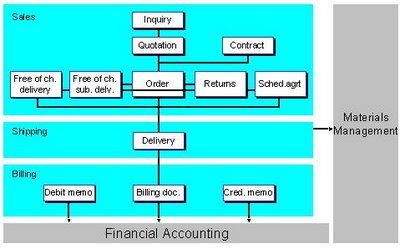
Basic Process of how Packing Works
Let's say you want to pack a material shirt_jai in test_pack.
Using MM01, create material type=packaging test_pack
[SPRO]
IMG-Logistics Execution-Shipping-Packing-
Define Packaging Material Types
Let's say JPAC. The settings that I chose:
Plant determ. - Plant is entered manually in handling unit
Pack. matl. cat. - Packaging materials
Generate Dlv. Items - blank
Number assignment - Number range interval 'HU_VEKP'
IMG-Logistics Execution-Shipping-Packing-
Define material group for packaging material
Let's say JGRP
IMG-Logistics Execution-Shipping-Packing-
Define allowed packaging materials
JGRP - JPAC
MM02: Check settings for the materials
First, test_pack
Sales:General/Plant -> Matl. Grp. Pack. Matls: JGRP (Note)
Sales:General/Plant -> Packaging Mat. Type: JPAC (Note)
Basic Data 1 -> Material: JMAT
Then, shirt_jai
Sales:General/Plant -> Matl. Grp. Pack. Matls: JGRP
Sales:General/Plant -> Packaging Mat. Type: -
Basic Data 1 -> Material: JMAT
VL01N Outbound Delivery -> Packing
Enter the materials at top and at bottom
The "Packing Process" with an Example
Example:
You created a order for a material(R-1160 - hard disks) for a qty - 120 pieces.
You need to create a delivery and
A)pack 40 pieces each of the material are grouped together into larger cardboard boxes (PK-100 - shipping/packing material) and
B)these 3 cardboard boxes are put into pallet (PK-095).
Solution:
A)Packing 40 pieces each of material (40 x 3 = 120 pieces)
1)Goto [VL02N] to change the delivery, you already created.
Or you can do the following steps while you are creating a delivery also.
2)Go to "pack" icon.
3)In the upper section, enter the "packing material" (PK-100)
4)In the lower section, change the "partial quantity" to 40 of material R-1160.
5)Select both the lines of upper section and lower section and click the green ok. It generates a shipping unit/handling unit number.
6)Now, select both lines of upper & lower section & click the button "per part. qty" (New HU per part qty of material)
Check: click "General Overview" icon to see whether it packed 40 pieces of material in 3 cartons.
B)Packing all 3 cartons in one big carton(PK-095)
1) from above screen, click "pack HUs" (pack shipping unit)
2)enter the packaging material (PK-095) in the upper section and select this line.
3)select 3 lines of PK-100 in lower section since you want to pack them in PK-095.
4)selecting both lines, click "pack" icon.
5)Now all the 3 cartons(PK-100 with 40 pieces each of material) are packed in one big carton (PK-095).
Check: "General overview" icon.
The Sales and Distribution (SD) application component fulfills many of the international requirements that supports the sales and distribution activities with functions such as pricing and conditions, customer order processing, delivery monitoring, billing, credit and risk management.
Document Flow in Sales
The sales documents you create are individual documents but they can also form part of a chain of inter-related documents. For example, you may record a customer’s telephone inquiry in the system. The customer next requests a quotation, which you then create by referring to the inquiry. The customer later places an order on the basis of the quotation and you create a sales order with reference to the quotation. You ship the goods and bill the customer. After delivery of the goods, the customer claims credit for some damaged goods and you create a free-of-charge delivery with reference to the sales order. The entire chain of documents – the inquiry, the quotation, the sales order, the delivery, the invoice, and the subsequent delivery free of charge – creates a document flow or history. The flow of data from one document into another reduces manual activity and makes problem resolution easier. Inquiry and quotation management in the Sales Information System help you to plan and control your sales.
The following graphic shows how the various types of sales documents are inter-related and how data subsequently flows into shipping and billing documents.

Basic Process of how Packing Works
Let's say you want to pack a material shirt_jai in test_pack.
Using MM01, create material type=packaging test_pack
[SPRO]
IMG-Logistics Execution-Shipping-Packing-
Define Packaging Material Types
Let's say JPAC. The settings that I chose:
Plant determ. - Plant is entered manually in handling unit
Pack. matl. cat. - Packaging materials
Generate Dlv. Items - blank
Number assignment - Number range interval 'HU_VEKP'
IMG-Logistics Execution-Shipping-Packing-
Define material group for packaging material
Let's say JGRP
IMG-Logistics Execution-Shipping-Packing-
Define allowed packaging materials
JGRP - JPAC
MM02: Check settings for the materials
First, test_pack
Sales:General/Plant -> Matl. Grp. Pack. Matls: JGRP (Note)
Sales:General/Plant -> Packaging Mat. Type: JPAC (Note)
Basic Data 1 -> Material: JMAT
Then, shirt_jai
Sales:General/Plant -> Matl. Grp. Pack. Matls: JGRP
Sales:General/Plant -> Packaging Mat. Type: -
Basic Data 1 -> Material: JMAT
VL01N Outbound Delivery -> Packing
Enter the materials at top and at bottom
The "Packing Process" with an Example
Example:
You created a order for a material(R-1160 - hard disks) for a qty - 120 pieces.
You need to create a delivery and
A)pack 40 pieces each of the material are grouped together into larger cardboard boxes (PK-100 - shipping/packing material) and
B)these 3 cardboard boxes are put into pallet (PK-095).
Solution:
A)Packing 40 pieces each of material (40 x 3 = 120 pieces)
1)Goto [VL02N] to change the delivery, you already created.
Or you can do the following steps while you are creating a delivery also.
2)Go to "pack" icon.
3)In the upper section, enter the "packing material" (PK-100)
4)In the lower section, change the "partial quantity" to 40 of material R-1160.
5)Select both the lines of upper section and lower section and click the green ok. It generates a shipping unit/handling unit number.
6)Now, select both lines of upper & lower section & click the button "per part. qty" (New HU per part qty of material)
Check: click "General Overview" icon to see whether it packed 40 pieces of material in 3 cartons.
B)Packing all 3 cartons in one big carton(PK-095)
1) from above screen, click "pack HUs" (pack shipping unit)
2)enter the packaging material (PK-095) in the upper section and select this line.
3)select 3 lines of PK-100 in lower section since you want to pack them in PK-095.
4)selecting both lines, click "pack" icon.
5)Now all the 3 cartons(PK-100 with 40 pieces each of material) are packed in one big carton (PK-095).
Check: "General overview" icon.
Thursday, May 14, 2009
SAP Tutorial - Part 12 - SAP Transaction Code
SAP Transaction Code
SPRO DEFINE ITEM CATEGORY
MM01 CREATE MATERIAL
MM02 MODIFY MATERIAL
MM03 DISPLAY MATERIAL
MMS1 CREATE MATERIAL MASTER
MMS2 CHANGE MATERIAL MASTER
MMS3 DISPLAY MATERIAL MASTER
MB1C MAINTAIN STOCK
MMPI INITIALISE PERIOD FOR MASTER MATERIAL RECORDFROM CO CODE
MMBE CREATE STOCK
MM60 MATERIAL LIST
XD01 CREATE CUSTOMER
XD02 MODIFY CUSTOMER
XD03 DISPLAY CUSTOMER
VA01 CREATE ORDER
VA02 CHANGE ORDER
VA03 DISPLAY ORDER
VA11 CREATE INQUIRY
VA12 CHANGE INQUIRY
VA13 DISPLAY INQUIRY
VA21 CREATE QUOTATION
VA22 CHANGE QUOTATION
VA23 DISPLAY QUOTATION
VD02 CHANGE SALES PROSPECT
VD03 DISPLAY SALES PROSPECT
VD04 DISPLAY CHANGES
VD06 FLAG FOR DELETION
VK11 MAINTAINING PRICING
VK0A ASSIGN G/L ACCOUNT GENERAL
VOK0 PRICING
VOR1 DEF COMMON DIST CHANEL
VOR2 DEF COMMON DIV
VOV6 DEFINE SCHEDULE LINES
VOV8 DEFINE SALES DOC TYPE
VOFA CREATE/OR CHANGE BILLING TYPES CONFIGURATION
V129 DEFINE INCOMPLETENESS SCHEMAS FOR FOREIGN TRADE
V149 ASSIGN INCOMPLETENESS SCHEMAS FOR COUNTRY CODE
CA01 CREATE ROUTING
CA02 EDIT ROUTING
CA03 DISPLAY ROUTING
CS01 CREATE BOM
CS02 CHANGE BOM
CS03 DISPLAY BOM
OVK1 DEFINE TAX DET RULES
OVK3 DEF TAX REL OF MASTER RECORDS CUSTOMER TAXES
OVK4 DEF TAX REL OF MASTER RECORDS MATERIAL TAXES
OVR6 DEF LEGAL STATUSES
OVS9 DEF CUSTOMER GRP
OVRA MAINT STATISTICS GRPS FOR CUSTOMERS
OVRF MAINT STATISTICS GRPS FOR MATERIAL
OVXC ASSIGN SHIIPING POINT TO PLANT
OVX6 ASSIGN PLANT TO S.O AND DIST CHANEL
OVLK DEFINE DELIVERY TYPE
OVSG DEFINE INCOTERMS
OVLH DEFINE ROUTES
OVXM ASSIGN SALES OFF TO SALES AREA
OVXJ ASSIGN SALES GRP TO SALES OFFICE
OMS2 MATERAIL UPDATE
OVLP DEFINE ITEM CATEGORY FOR DELIVERY
OX10 ASSIGN DEL PLANTS FOR TAX DET
O/S2 DEFINE SERIAL NO PROFILE
O/S1 DEFINE CENTRAL CONTROL PARAMETERS FOR SR NO
OBB8 DEFINE TERMS OF PAYMENT
OKKP ACTIVATION OF COMPONENETS
VB01 CREATE REBATE AGGREMENTS
VB02 CHANGE REBATE AGREMENT
VB03 DISPLAY REBATE AGGREMENT
VB31 CREATE PROMOTION
VB32 CHANGE PROMOTION
VB33 DISPLAY PROMOTION
VB21 CREATE SALES DEAL
VB22 CHANGE SALES DEAL
VB23 DISPLAY SALES DEAL
VB25 LIST OF SALES DEAL
VB35 PROMOTION LIST
VKA4 CREATE ARCHIVE ADMINISTRATION
VKA5 DEL ARCHIVE ADMINISTRATION
VKA6 RELOAD ARCHIVE ADMINISTRATION
VC/1 CUSTOMER LIST
VC/2 CREATE SALES SUMMARY
VDH2 DISPLAY CUSTOMER HIERARCHY
VF01 CREATE PROFORMA INVOICE
VF02 CHANGE PROFORMAINVOICE
VF03 DISPLAYPROFORMA INVOICE
VF07 DISPLAY FROM ARCHIVE
VF11 CANCEL BILL
VFX3 BLOCKED BILLING DOC
VFRB RETRO BILLING
VF04 MAINTAIN BILL DUE LIST
VF06 BACKGROUND PROCESSING
VF21 CREATE INVOICE LIST
VF22 CHANGE INVOICE LIST
VF23 DISPLAY INVOICE LIST
VF44 MAINT REVENUE LIST
VF45 REVENUE REPORTS
VF46 MAINT CANCELLATION LIST
VF31 ISSUE BILLING DOC
VFP1 SET BILLING DATE
VARR ARCHIVE DOCUMENTS
VL01N CREATE DELIVERY
VL02N TO CHANGE DELIVERY WHICH IS ALREADY CREATED
VL03N DISPLAY DELIVERY
V/08 TO CHANGE CONDITION (PR PROCEDURE)
V/30 DEFINE PRINT PARAMETERS
FD32 SETTING CREDIT LIMIT FOR CUSTOMER
/NSM12 TO REMOVE LOCK ENTRY
SM30
ND59 LIST CUSTOMER MATERIAL INFO
VB0F UPDATE BILL DOC
SPRO DEFINE ITEM CATEGORY
MM01 CREATE MATERIAL
MM02 MODIFY MATERIAL
MM03 DISPLAY MATERIAL
MMS1 CREATE MATERIAL MASTER
MMS2 CHANGE MATERIAL MASTER
MMS3 DISPLAY MATERIAL MASTER
MB1C MAINTAIN STOCK
MMPI INITIALISE PERIOD FOR MASTER MATERIAL RECORDFROM CO CODE
MMBE CREATE STOCK
MM60 MATERIAL LIST
XD01 CREATE CUSTOMER
XD02 MODIFY CUSTOMER
XD03 DISPLAY CUSTOMER
VA01 CREATE ORDER
VA02 CHANGE ORDER
VA03 DISPLAY ORDER
VA11 CREATE INQUIRY
VA12 CHANGE INQUIRY
VA13 DISPLAY INQUIRY
VA21 CREATE QUOTATION
VA22 CHANGE QUOTATION
VA23 DISPLAY QUOTATION
VD02 CHANGE SALES PROSPECT
VD03 DISPLAY SALES PROSPECT
VD04 DISPLAY CHANGES
VD06 FLAG FOR DELETION
VK11 MAINTAINING PRICING
VK0A ASSIGN G/L ACCOUNT GENERAL
VOK0 PRICING
VOR1 DEF COMMON DIST CHANEL
VOR2 DEF COMMON DIV
VOV6 DEFINE SCHEDULE LINES
VOV8 DEFINE SALES DOC TYPE
VOFA CREATE/OR CHANGE BILLING TYPES CONFIGURATION
V129 DEFINE INCOMPLETENESS SCHEMAS FOR FOREIGN TRADE
V149 ASSIGN INCOMPLETENESS SCHEMAS FOR COUNTRY CODE
CA01 CREATE ROUTING
CA02 EDIT ROUTING
CA03 DISPLAY ROUTING
CS01 CREATE BOM
CS02 CHANGE BOM
CS03 DISPLAY BOM
OVK1 DEFINE TAX DET RULES
OVK3 DEF TAX REL OF MASTER RECORDS CUSTOMER TAXES
OVK4 DEF TAX REL OF MASTER RECORDS MATERIAL TAXES
OVR6 DEF LEGAL STATUSES
OVS9 DEF CUSTOMER GRP
OVRA MAINT STATISTICS GRPS FOR CUSTOMERS
OVRF MAINT STATISTICS GRPS FOR MATERIAL
OVXC ASSIGN SHIIPING POINT TO PLANT
OVX6 ASSIGN PLANT TO S.O AND DIST CHANEL
OVLK DEFINE DELIVERY TYPE
OVSG DEFINE INCOTERMS
OVLH DEFINE ROUTES
OVXM ASSIGN SALES OFF TO SALES AREA
OVXJ ASSIGN SALES GRP TO SALES OFFICE
OMS2 MATERAIL UPDATE
OVLP DEFINE ITEM CATEGORY FOR DELIVERY
OX10 ASSIGN DEL PLANTS FOR TAX DET
O/S2 DEFINE SERIAL NO PROFILE
O/S1 DEFINE CENTRAL CONTROL PARAMETERS FOR SR NO
OBB8 DEFINE TERMS OF PAYMENT
OKKP ACTIVATION OF COMPONENETS
VB01 CREATE REBATE AGGREMENTS
VB02 CHANGE REBATE AGREMENT
VB03 DISPLAY REBATE AGGREMENT
VB31 CREATE PROMOTION
VB32 CHANGE PROMOTION
VB33 DISPLAY PROMOTION
VB21 CREATE SALES DEAL
VB22 CHANGE SALES DEAL
VB23 DISPLAY SALES DEAL
VB25 LIST OF SALES DEAL
VB35 PROMOTION LIST
VKA4 CREATE ARCHIVE ADMINISTRATION
VKA5 DEL ARCHIVE ADMINISTRATION
VKA6 RELOAD ARCHIVE ADMINISTRATION
VC/1 CUSTOMER LIST
VC/2 CREATE SALES SUMMARY
VDH2 DISPLAY CUSTOMER HIERARCHY
VF01 CREATE PROFORMA INVOICE
VF02 CHANGE PROFORMAINVOICE
VF03 DISPLAYPROFORMA INVOICE
VF07 DISPLAY FROM ARCHIVE
VF11 CANCEL BILL
VFX3 BLOCKED BILLING DOC
VFRB RETRO BILLING
VF04 MAINTAIN BILL DUE LIST
VF06 BACKGROUND PROCESSING
VF21 CREATE INVOICE LIST
VF22 CHANGE INVOICE LIST
VF23 DISPLAY INVOICE LIST
VF44 MAINT REVENUE LIST
VF45 REVENUE REPORTS
VF46 MAINT CANCELLATION LIST
VF31 ISSUE BILLING DOC
VFP1 SET BILLING DATE
VARR ARCHIVE DOCUMENTS
VL01N CREATE DELIVERY
VL02N TO CHANGE DELIVERY WHICH IS ALREADY CREATED
VL03N DISPLAY DELIVERY
V/08 TO CHANGE CONDITION (PR PROCEDURE)
V/30 DEFINE PRINT PARAMETERS
FD32 SETTING CREDIT LIMIT FOR CUSTOMER
/NSM12 TO REMOVE LOCK ENTRY
SM30
ND59 LIST CUSTOMER MATERIAL INFO
VB0F UPDATE BILL DOC
Wednesday, April 15, 2009
SAP Tutorial - Part 11 - SAP Landscape
SAP Landscape Introduction
Landscape is like a server system or like a layout of the servers or some may even call it the architecture of the servers viz. SAP is divided into three different landscape DEV, QAS and PROD.
- DEV would have multiple clients for ex: 190- Sandbox, 100- Golden, 180- Unit Test.
- QAS may again have multiple clients for ex: 300- Integration Test, 700 to 710 Training.
- PROD may have something like a 200 Production.
These names and numbers are the implementer's discreet on how they want it or they have been using in their previous implementations or how is the client's business scenario.
Now whatever you do in the Sandbox doesn't affect the other servers or clients. Whenever you think you are satisfied with your configuration and you think you can use it moving forward, you RE-DO it in the golden client (remember, this is a very neat and clean client and you cannot use it for rough usage). As you re-do everything that you had thought was important and usable, you get a transport request pop up upon saving every time. You save it under a transport request and give your description to it. Thus the configuration is transported to the Unit Test client (180 in this example).
You don't run any transaction or even use the SAP Easy Access screen on the 100 (golden) client. This is a configuration only client. Now upon a successful transport by the Basis guy, you have all the configuration in the Testing client, just as it is in the Golden client. The configuration remains in sync between these two clients.
But in the Testing client you can not even access SPRO (Display IMG) screen. It's a transaction only client where you perform the unit test. Upon a satisfactory unit test, you move the good configuration to the next SERVER (DEV). The incorrect or unsatisfactory configuration is corrected in Golden (may again as well be practiced in the sandbox prior to Golden) and accordingly transported back to 180 (Unit Test) until the unit test affected by that particular Config is satisfactory.
The Golden client remains the 'database' (if you want to call it that) or you may rather call it the 'ultimate' reference client for all the good, complete and final configuration that is being used in the implementation.
SAP System Landscape Directory
Purpose
A modern computing environment consists of a number of hardware and software components that depend on each other with regard to installation, software updates, and demands on interfaces. The SAP System Landscape Directory (SLD) simplifies the administration of your system landscape.
The SLD is a server application that communicates with a client application by using the Hypertext Transfer Protocol (HTTP). The SLD server contains component information, a landscape description, and a name reservation, which are based on the standard Common Information Model (CIM). The CIM standard is a general schema for describing the elements in a system landscape. This standard is independent of any implementation.
Features
The component description provides information about all available SAP software modules. This includes version numbers, current patch level, and dependencies between landscape components. SAP makes this information available to its customers. You can download the current component description from SAP Service Marketplace, which then updates your local component description (see SAP Note 669669). It is also possible to add instances for third-party components to the component description.
The system landscape description represents the exact model of an actual system landscape. Together with the current component description, the system description provides information for various processes (the system administration and implementation, for example).
The example below shows a possible scenario that illustrates how the component and system landscape description functions.
Example
On the left-hand side of the following graphic is the master description for all existing SAP software modules. SAP maintains this information. The local component description on the right-hand side (client side) can be updated in accordance with the master description.
An installed mySAP.com component is registered in the System Landscape Directory. The component description contains information about the installed components. If, for example, a new Support Package is available for this component, SAP publishes this information using the master description. In this way, the customers receive all the latest information relevant for their system landscape promptly.
Landscape is like a server system or like a layout of the servers or some may even call it the architecture of the servers viz. SAP is divided into three different landscape DEV, QAS and PROD.
- DEV would have multiple clients for ex: 190- Sandbox, 100- Golden, 180- Unit Test.
- QAS may again have multiple clients for ex: 300- Integration Test, 700 to 710 Training.
- PROD may have something like a 200 Production.
These names and numbers are the implementer's discreet on how they want it or they have been using in their previous implementations or how is the client's business scenario.
Now whatever you do in the Sandbox doesn't affect the other servers or clients. Whenever you think you are satisfied with your configuration and you think you can use it moving forward, you RE-DO it in the golden client (remember, this is a very neat and clean client and you cannot use it for rough usage). As you re-do everything that you had thought was important and usable, you get a transport request pop up upon saving every time. You save it under a transport request and give your description to it. Thus the configuration is transported to the Unit Test client (180 in this example).
You don't run any transaction or even use the SAP Easy Access screen on the 100 (golden) client. This is a configuration only client. Now upon a successful transport by the Basis guy, you have all the configuration in the Testing client, just as it is in the Golden client. The configuration remains in sync between these two clients.
But in the Testing client you can not even access SPRO (Display IMG) screen. It's a transaction only client where you perform the unit test. Upon a satisfactory unit test, you move the good configuration to the next SERVER (DEV). The incorrect or unsatisfactory configuration is corrected in Golden (may again as well be practiced in the sandbox prior to Golden) and accordingly transported back to 180 (Unit Test) until the unit test affected by that particular Config is satisfactory.
The Golden client remains the 'database' (if you want to call it that) or you may rather call it the 'ultimate' reference client for all the good, complete and final configuration that is being used in the implementation.
SAP System Landscape Directory
Purpose
A modern computing environment consists of a number of hardware and software components that depend on each other with regard to installation, software updates, and demands on interfaces. The SAP System Landscape Directory (SLD) simplifies the administration of your system landscape.
The SLD is a server application that communicates with a client application by using the Hypertext Transfer Protocol (HTTP). The SLD server contains component information, a landscape description, and a name reservation, which are based on the standard Common Information Model (CIM). The CIM standard is a general schema for describing the elements in a system landscape. This standard is independent of any implementation.
Features
The component description provides information about all available SAP software modules. This includes version numbers, current patch level, and dependencies between landscape components. SAP makes this information available to its customers. You can download the current component description from SAP Service Marketplace, which then updates your local component description (see SAP Note 669669). It is also possible to add instances for third-party components to the component description.
The system landscape description represents the exact model of an actual system landscape. Together with the current component description, the system description provides information for various processes (the system administration and implementation, for example).
The example below shows a possible scenario that illustrates how the component and system landscape description functions.
Example
On the left-hand side of the following graphic is the master description for all existing SAP software modules. SAP maintains this information. The local component description on the right-hand side (client side) can be updated in accordance with the master description.
An installed mySAP.com component is registered in the System Landscape Directory. The component description contains information about the installed components. If, for example, a new Support Package is available for this component, SAP publishes this information using the master description. In this way, the customers receive all the latest information relevant for their system landscape promptly.
Subscribe to:
Posts (Atom)
